What is the difference between the value and placeholder attributes in an input field?
The difference between the value and placeholder attributes in an input field, including examples, code snippets, use cases, misconceptions, accessibility notes, and best practices.
What Is the Difference Between the Value and Placeholder Attributes in an Input Field?
HTML forms play a crucial role in collecting information from users. Whether you are building a login page, a payment form, a registration system, or a survey, input fields are everywhere. Among the most commonly used attributes in an <input> element are value and placeholder. They look similar at first, because both can display text inside an input field, but their functions are completely different.
Understanding the difference between these two attributes is important not only for writing clean HTML but also for improving user experience, accessibility, and form-handling logic.
This long-form article explains the role of both attributes, how browsers interpret them, what users see, how they behave during form submission, and common mistakes developers make. By the end, you will have a complete understanding of when to use value, when to use placeholder, and how to avoid UX pitfalls.
1. Introduction to Input Fields
HTML input fields allow users to enter data. The <input> element supports many types (text, email, password, number, date, etc.), but regardless of type, the value and placeholder attributes appear frequently.
Example:
<input type="text" placeholder="Enter your name" value="John">
In this example, both a placeholder and a value are present, so which one appears? That’s exactly what this article will explain.
2. What Is the placeholder Attribute?
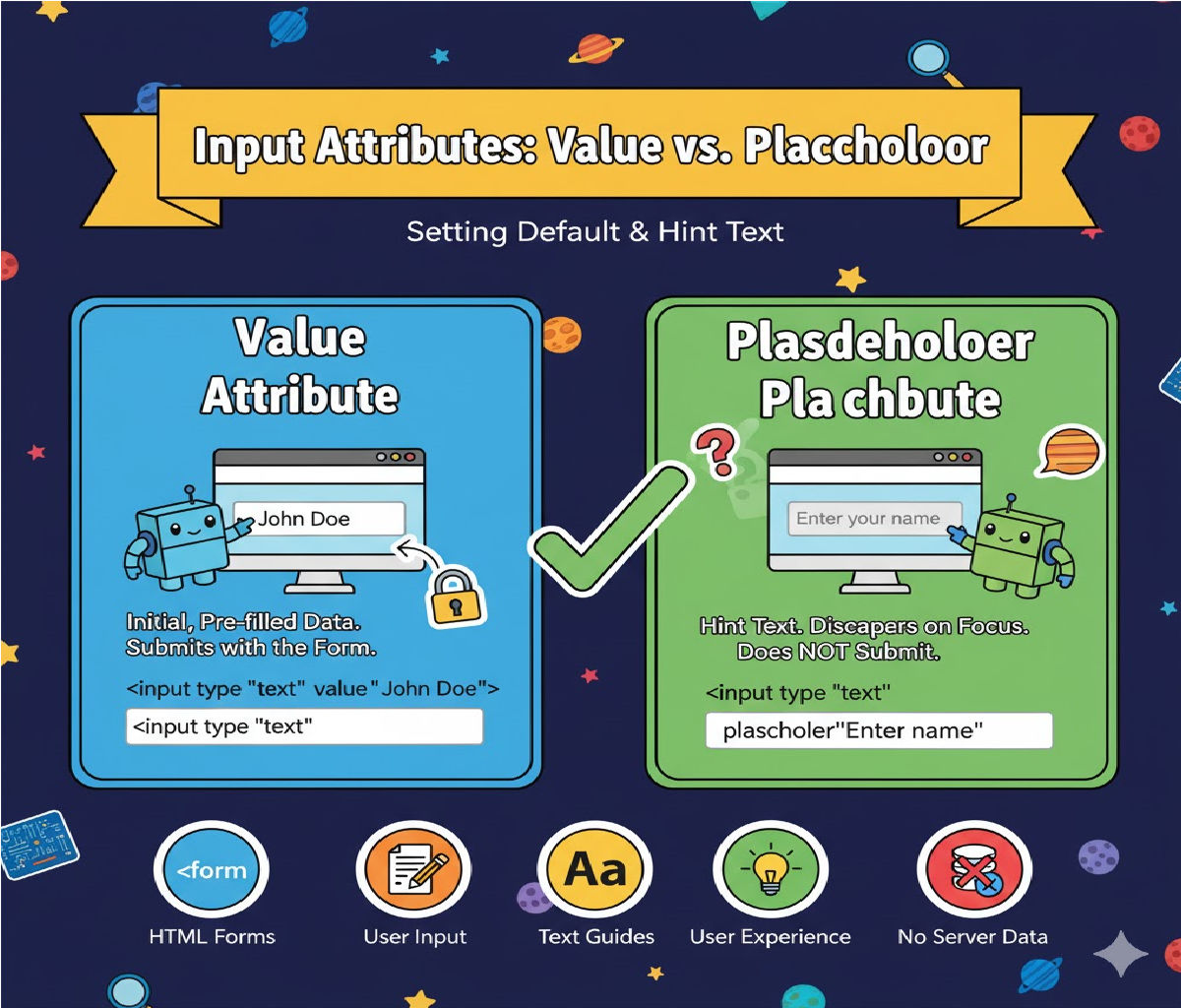
A placeholder is hint text that appears inside the input field when it is empty.
It disappears as soon as the user starts typing or when the field gains focus (depending on the browser).
Purpose of a Placeholder
- To provide an example of what type of input is expected.
- To guide the user.
- To make forms more intuitive.
Basic Example
<input type="text" placeholder="Enter your email">
What the user sees:
- Greyish, light text inside the box: Enter your email
- When they click or type → the placeholder disappears.
Key Properties of a Placeholder
- Not submitted with the form.
- Not considered input.
- Not read by all screen readers (accessibility issue).
- Purely visual guidance.
When Should You Use It?
✔ To show example formats
✔ To explain expected data (e.g., “+91 9876543210”)
✔ For optional or simple fields
When Should You NOT Use It?
❌ Not as labels
❌ Not for essential instructions
❌ Not for accessibility-critical information
3. What Is the value Attribute?
The value attribute sets the actual content of the input field.
It is treated as real user input unless changed.
Purpose of a Value
- To show pre-filled data
- To retain user input after form submission
- To store default values for forms
- To fill forms with previously saved settings
Basic Example
<input type="text" value="John Doe">
What the user sees:
- "John Doe" appears as actual text in the input.
- They can edit, remove, or change it.
- It will be submitted if the user submits the form.
Key Properties of value
- Submitted as actual data.
- Acts as the field’s default value.
- Visible until modified by the user.
- Can survive form autosave or autocomplete features.
4. Side-by-Side Comparison
| Feature | placeholder | value |
|---|---|---|
| Appears when field is empty | Yes | Yes (but as actual data) |
| Disappears when typing | Yes | No |
| Submitted with form | No | Yes |
| Can be selected or edited | No | Yes |
| Ideal for | Hints, examples | Default or pre-filled data |
| Accessibility friendly | Not always | Yes |
| Persist after form refresh | No | Yes (if browser saves it) |
5. Code Examples Demonstrating the Difference
Example 1: Placeholder Only
<input type="text" placeholder="Enter username">
User sees the placeholder until they type something.
Example 2: Value Only
<input type="text" value="GuestUser123">
User sees real text which can be submitted.
Example 3: Placeholder + Value
<input type="text" placeholder="Enter name" value="Rahul">
In this case:
The value overrides the placeholder, so the placeholder will never appear unless the user deletes the value.
6. What Happens When You Submit a Form?
Form with Placeholder
<form>
  <input type="text" placeholder="Full Name" name="fullname">
  <button type="submit">Submit</button>
</form>
If the user submits without typing anything:
Submitted data = "" (empty string)
The placeholder does not count as input.
Form with Value
<form>
  <input type="text" value="John" name="fullname">
  <button type="submit">Submit</button>
</form>
If user submits without typing:
Submitted data = "John"
The value is submitted.
7. Using Value for Prefilling Forms
Common use cases:
- Sign-in pages remembering usernames
- Edit profile pages showing previous data
- E-commerce checkout forms showing saved address
- Admin dashboards editing database entries
Example: Prefilling Email
<input type="email" value="user@example.com" name="email">
8. Using Placeholder for Hints and Format Guidance
Common use cases:
- "DD/MM/YYYY"
- "Search..."
- "Type a message"
- "Enter 10-digit phone number"
Example
<input type="text" placeholder="Search for products">
9. Common Mistakes Developers Make
❌ Mistake 1: Using placeholder instead of label
<input type="text" placeholder="Name">
If the placeholder disappears, users may forget what the field is for.
✔ Correct Approach
<label for="name">Name</label>
<input type="text" id="name" placeholder="John Doe">
❌ Mistake 2: Using placeholder as a default value
Wrong:
<input type="email" placeholder="example@gmail.com">
If the user does not type anything, the email field submits empty.
Correct:
<input type="email" value="example@gmail.com">
❌ Mistake 3: Placeholder too light in color
Users might think the field is already filled.
❌ Mistake 4: Placeholder with essential instructions
Example:
<input type="password" placeholder="Must contain 8 characters">
If the user starts typing, the instruction disappears.
Better solution:
<label>Password</label>
<input type="password" placeholder="Enter password">
<small>Must contain at least 8 characters.</small>
10. Accessibility Considerations
Many screen readers do NOT read placeholder text or read it inconsistently.
Accessibility Rules:
✔ Always use a <label>
✔ Do NOT replace labels with placeholders
✔ Do NOT rely on placeholder color
Example (Accessible):
<label for="phone">Phone Number</label>
<input type="text" id="phone" placeholder="+91 9876543210">
11. JavaScript Behavior Differences
Reading the Value Using JS
Even if it’s from placeholder:
document.getElementById("input").value;
value returns:
- the actual typed text
- OR the
value=""attribute - NOT the placeholder
Example:
<input id="input" type="text" placeholder="Type here">
If the user has typed nothing:
input.value → ""placeholder is NOT returned!
Changing Value Dynamically
document.getElementById("input").value = "New Text";
This updates what the user sees.
Changing Placeholder Dynamically
document.getElementById("input").placeholder = "Enter your name";
12. Real-World Use Cases
A. Login Form
Use value when prefilling username:
<input type="text" value="admin" name="username">
Use placeholder for guidance:
<input type="password" placeholder="Enter your password">
B. Search Box
<input type="text" placeholder="Search items...">
C. Editing User Profile
<input type="text" name="city" value="Mumbai">
13. Summary of Differences
placeholder
- Temporary example text
- Not submitted
- Disappears on click
- Not always readable by screen readers
value
- Actual saved text
- Submitted with form
- Remains visible
- Acts as default input
14. Best Practices
✔ Use placeholder for short hints
✔ Use value for prefilled data
✔ Always include labels
✔ Keep placeholders short
✔ Avoid using placeholder as validation instructions
15. Final Conclusion
The value and placeholder attributes in an HTML input field may appear similar at first glance, but their purposes are completely different. placeholder gives temporary visual hints, while value stores actual input data that is submitted with forms. Understanding when to use each attribute enhances user experience, improves form usability, and helps developers write cleaner, more accessible code.
Related Posts