How do you add subtitles to a video using HTML5?
The HTML5 <video> Element
HTML5 introduced the <video> tag to embed video content directly into web pages.
Basic example:
<video width="640" height="360" controls>
  <source src="movie.mp4" type="video/mp4">
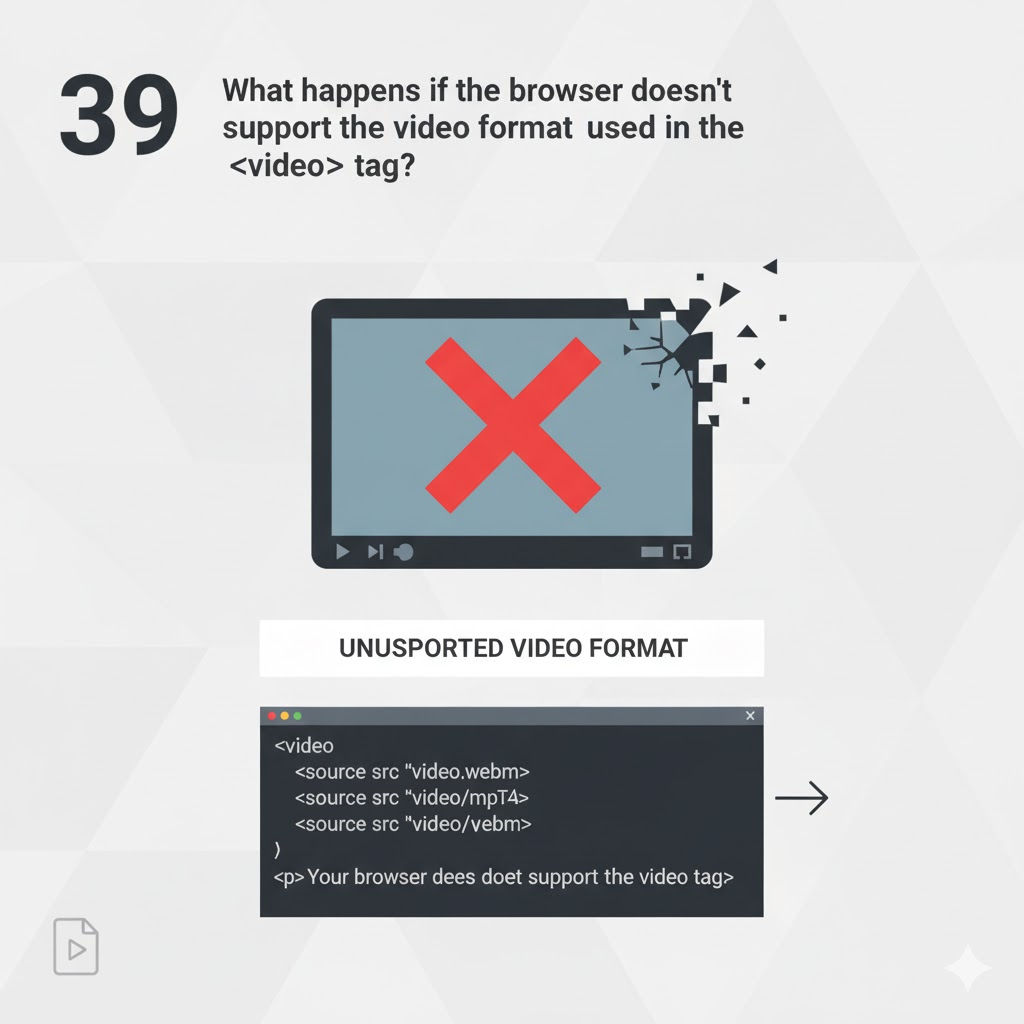
  Your browser does not support the video tag.
</video>
Explanation:
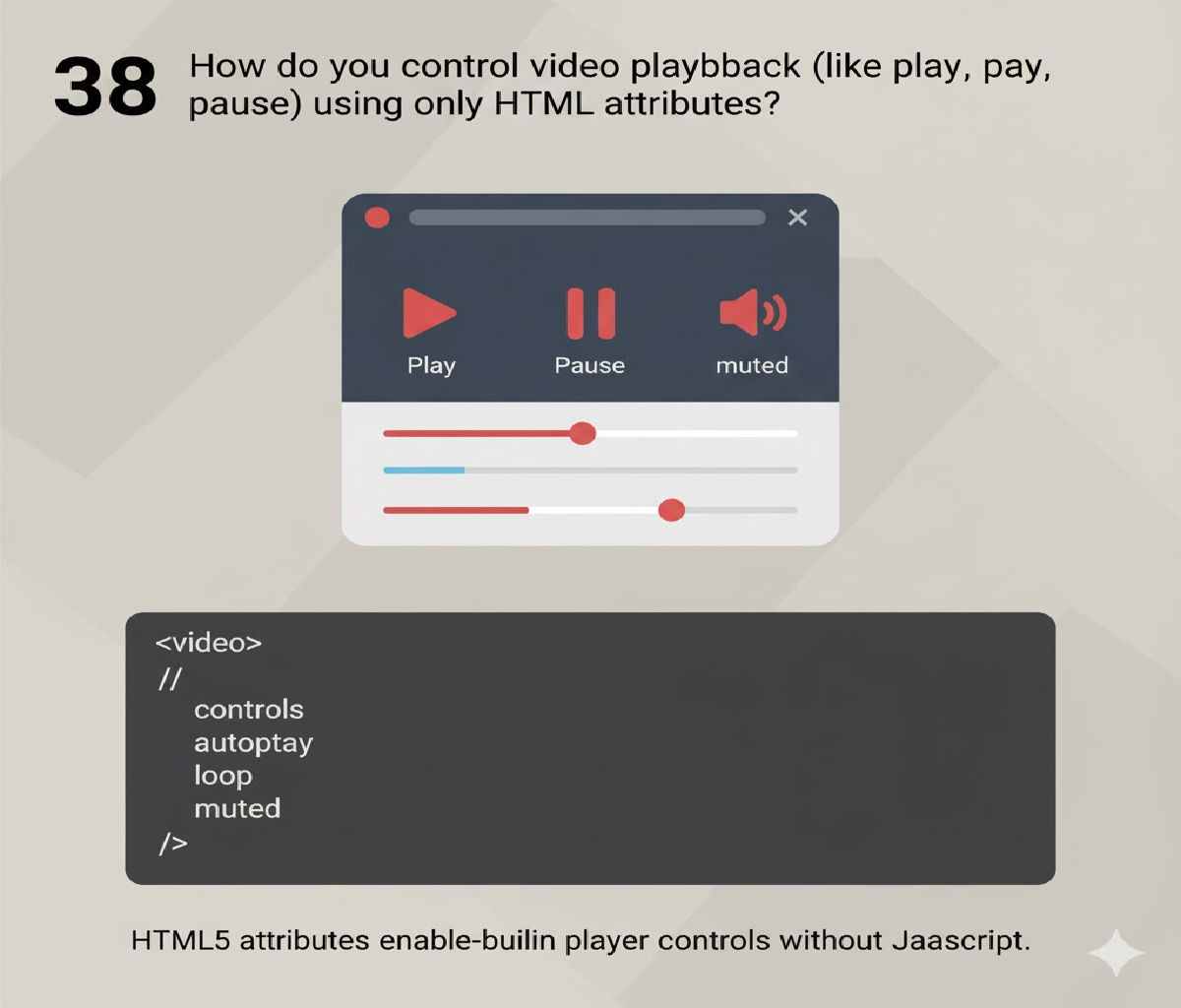
widthandheight→ define video sizecontrols→ adds play/pause/volume UI<source>→ defines video file- Fallback text → shown if browser doesn’t support video
But this alone does not add subtitles.
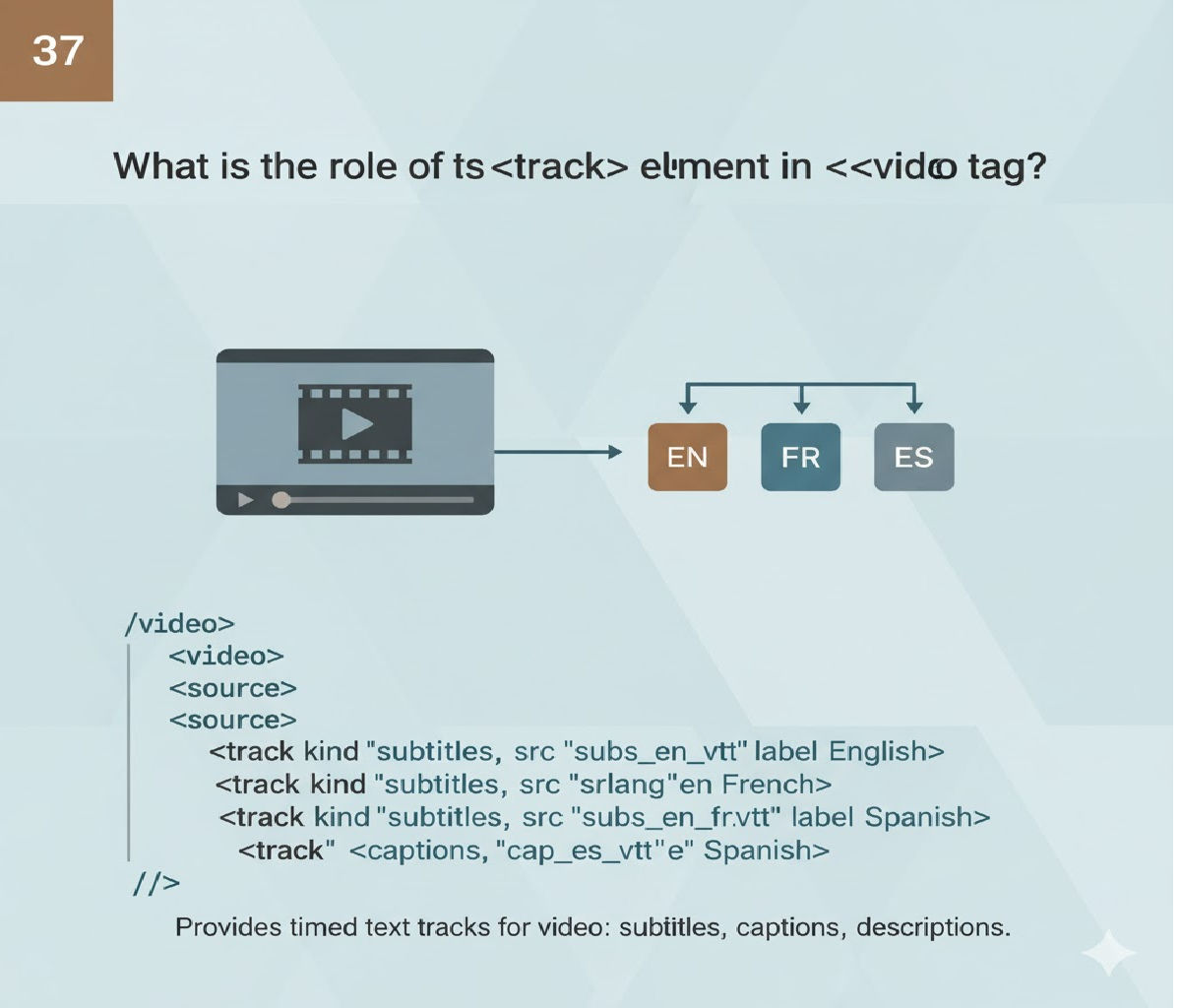
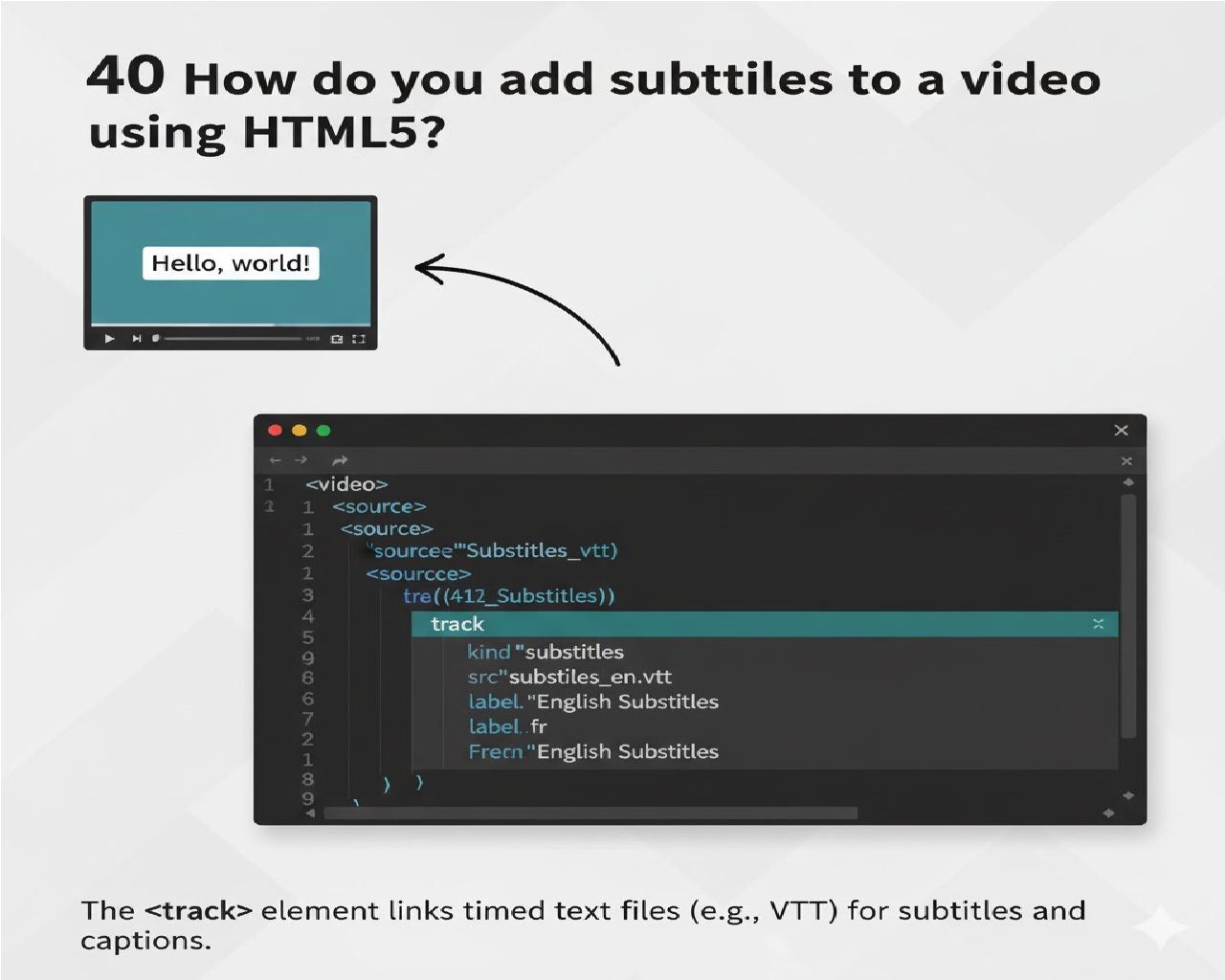
To add subtitles, we use the <track> element.
2. The <track> Element (For Subtitles)
The <track> tag is placed inside the <video> tag and connects a subtitle file.
Basic structure:
<track
  src="subtitles.vtt"
  kind="subtitles"
  srclang="en"
  label="English">
Attribute Breakdown:
| Attribute | Purpose |
|---|---|
src | Path to subtitle file |
kind | Type (subtitles, captions, descriptions, chapters, metadata) |
srclang | Language code (en, hi, fr, etc.) |
label | Text shown in video menu |
default | Automatically enable this track |
Now let’s combine it with video.
3. Complete Basic Example (Working Code)
<!DOCTYPE html>
<html>
<head>
  <title>HTML5 Video with Subtitles</title>
</head>
<body>

<h2>Video with Subtitles Example</h2>

<video width="640" height="360" controls>
  <source src="movie.mp4" type="video/mp4">

  <track
    src="subtitles_en.vtt"
    kind="subtitles"
    srclang="en"
    label="English"
    default>

  Your browser does not support HTML5 video.
</video>

</body>
</html>
Now the key question:
What is this .vtt file?
4. Understanding Web VTT (Subtitle File Format)
HTML5 subtitles use the Web VTT format.
VTT stands for Web Video Text Tracks.
A .vtt file is just a text file with time-coded captions.
Example: subtitles_en.vtt
WEBVTT

00:00:01.000 --> 00:00:04.000
Welcome to this tutorial on HTML5 subtitles.

00:00:05.000 --> 00:00:08.000
In this video, we will learn how to add captions.

00:00:09.000 --> 00:00:12.000
It is simple and very powerful.
Important Format Rules:
- First line must be:
WEBVTT - Blank line after it.
- Each subtitle block:
- Start time → End time
- Text below it
- Blank line after each block
Time format:
HH:MM:SS.milliseconds
Example:
00:00:05.000 --> 00:00:08.000
When the video reaches 5 seconds, subtitle appears. At 8 seconds, it disappears.
5. Subtitles vs Captions
The kind attribute matters.
| kind | Meaning |
|---|---|
subtitles | Translation of speech |
captions | Includes sound effects (e.g., [Music Playing]) |
descriptions | Audio descriptions |
chapters | Navigation markers |
metadata | Data for scripts |
Example for captions:
<track src="captions.vtt" kind="captions" srclang="en" label="English CC">
If you're building educational or accessible websites, use captions.
6. Adding Multiple Language Subtitles
You can add multiple <track> tags.
<video width="640" height="360" controls>
  <source src="movie.mp4" type="video/mp4">

  <track src="subtitles_en.vtt"
         kind="subtitles"
         srclang="en"
         label="English"
         default>

  <track src="subtitles_hi.vtt"
         kind="subtitles"
         srclang="hi"
         label="Hindi">

</video>
Now the player will show a subtitle selection menu.
The default attribute activates one track automatically.
7. Styling Subtitles Using CSS
You can style subtitles using ::cue pseudo-element.
Example:
<style>
video::cue {
  color: yellow;
  font-size: 20px;
  background: rgba(0, 0, 0, 0.7);
}
</style>
This changes:
- Text color
- Font size
- Background color
More advanced styling:
video::cue {
  font-family: Arial;
  font-weight: bold;
  text-shadow: 2px 2px 4px black;
}
Note:
Browser support may vary slightly.
8. Controlling Subtitles with JavaScript
Sometimes you want dynamic control.
Example: Enable or disable subtitles via JS.
<script>
  const video = document.querySelector("video");
  const track = video.textTracks[0];

  // Enable subtitles
  track.mode = "showing";

  // Disable subtitles
  // track.mode = "disabled";
</script>
textTracks gives access to subtitle tracks.
Modes:
showinghiddendisabled
This is useful in:
- Custom video players
- Learning platforms
- Subtitle toggle buttons
9. Creating Custom Subtitle Toggle Button
Example:
<button onclick="toggleSubtitles()">Toggle Subtitles</button>

<script>
function toggleSubtitles() {
  const video = document.querySelector("video");
  const track = video.textTracks[0];

  if (track.mode === "showing") {
    track.mode = "disabled";
  } else {
    track.mode = "showing";
  }
}
</script>
This gives full control.
10. Best Practices for Subtitles
Since you also teach (especially math students online), this part is important if you ever build recorded lectures.
Good subtitles should:
- Be short (1–2 lines max)
- Stay on screen long enough
- Sync properly
- Avoid blocking important content
- Use clear punctuation
For educational videos:
- Include formulas clearly
- Write numbers properly
- Avoid long paragraphs
11. Common Mistakes
- ❌ Forgetting "WEBVTT" at top
- ❌ Wrong time format
- ❌ Missing blank lines
- ❌ Using .srt without converting
- ❌ Wrong file path
Note:
Browsers do NOT directly support .srt. You must convert it to .vtt.
12. Converting SRT to VTT
If you have:
1
00:00:01,000 --> 00:00:04,000
Hello world
Convert commas to dots and remove numbering:
WEBVTT

00:00:01.000 --> 00:00:04.000
Hello world
That’s it.
13. Full Production-Ready Example
Here is a complete professional structure:
<!DOCTYPE html>
<html>
<head>
<meta charset="UTF-8">
<title>Professional Video with Subtitles</title>

<style>
  body {
    font-family: Arial, sans-serif;
    text-align: center;
    background-color: #f4f4f4;
  }

  video {
    margin-top: 20px;
    border-radius: 8px;
  }

  video::cue {
    color: white;
    font-size: 18px;
    background: rgba(0, 0, 0, 0.8);
    padding: 5px;
  }
</style>
</head>

<body>

<h2>HTML5 Video with Subtitle Support</h2>

<video width="720" controls>
  <source src="lecture.mp4" type="video/mp4">

  <track src="subtitles_en.vtt"
         kind="captions"
         srclang="en"
         label="English"
         default>

  <track src="subtitles_hi.vtt"
         kind="captions"
         srclang="hi"
         label="Hindi">

</video>

</body>
</html>
14. Accessibility Benefits
Subtitles help:
- Hearing-impaired users
- Non-native speakers
- Students watching without sound
- SEO (if transcript provided)
If you're building educational content for competitive exams, subtitles increase retention and clarity significantly.
15. Summary
To add subtitles using HTML5:
- Use
<video>tag - Add
<track>inside it - Create
.vttsubtitle file - Link it with
src - Use
kind="subtitles"orcaptions - Optionally style with CSS
- Control with JavaScript if needed
That’s the complete ecosystem.
Related Posts