What happens if you set type="number" but input text manually in some browsers?
What Happens If You Set type="number" but Input Text Manually in Some Browsers? (Explained with Code)
HTML provides a variety of input types that allow developers to capture different forms of user data accurately, and one of the commonly used types is type="number". At first glance, it appears simple: if an input field is defined as a number, a user should be restricted to entering numeric values only. However, the real-world behavior across browsers becomes far more nuanced. Developers often wonder what happens if a user attempts to manually type text into a number field. The answer varies based on browser engine, device type, validation rules, and how JavaScript interprets the value. Understanding this behavior is crucial for creating consistent, reliable forms and preventing unexpected errors in user submissions. This article explores exactly what happens, how different browsers react, what developers can expect, and how to handle number inputs safely and properly.
To begin, consider the basic structure of an HTML input field intended to accept numeric values:
<input type="number" id="age" name="age" />
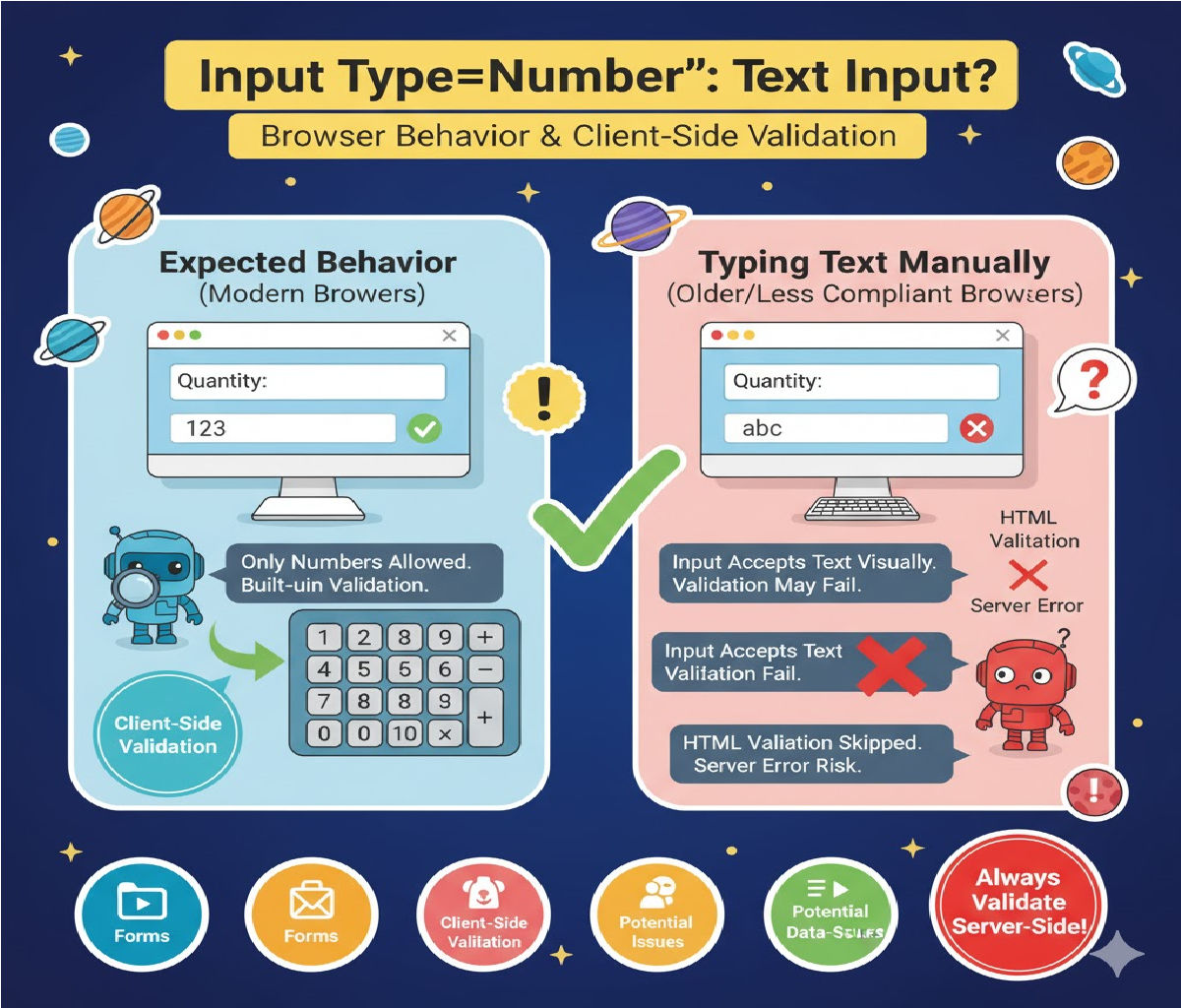
At face value, this tells the browser that only numeric values—including integers, decimals, and potentially scientific notation depending on attributes—should be accepted. But browsers do not magically prevent all invalid characters from being typed at every moment. The behavior internally is driven by how HTML5 defines number inputs, how browser vendors interpret the specification, and how input events behave when invalid values are entered temporarily. In many modern browsers, the user may be able to type non-numeric characters temporarily, but the input will not be considered valid, and form submission will be blocked unless validations override the issue.
Different browsers treat manual text input in type="number" fields differently. Chromium-based browsers such as Google Chrome, Microsoft Edge, and Opera generally prevent alphabetic characters from being typed directly. If you attempt to type a letter such as “a”, it will not appear in the field. These browsers enforce numeric input at the keyboard input level. That means characters like digits, hyphens for negative values, decimal points, and sometimes the letter “e” for exponential notation are allowed, but typical text is rejected outright. From a user standpoint, it feels like the keyboard simply refuses to enter invalid characters. However, pasting text behaves differently. If the user copies and pastes non-numeric characters into the field, Chrome and Edge allow the paste action, but the resulting value is immediately marked invalid, and the field may appear empty until corrected.
Firefox behaves differently. In Firefox, users can temporarily type letters into a number input field, but the browser marks the input as invalid internally. During this period, the field may visually show text even though the underlying value is not recognized as valid. JavaScript retrieving the value through input.value may return an empty string or a non-numeric string depending on how the browser parses the entry. The form cannot be submitted unless the invalid characters are removed or validation is bypassed, because Firefox still enforces numeric validation at the form submission phase. This is subtle and confusing for some developers because the user appears able to type text, yet the browser silently blocks submission later.
Safari on macOS and iOS also allows temporary invalid characters to appear in fields, similar to Firefox. It may display the text visually, but the field will still be invalid. Additionally, Safari applies its own validations on blur events, removing or flagging invalid text when the input loses focus. While this helps users correct mistakes, it also means Safari users experience different behavior than Chrome users, creating inconsistency across platforms.
A simple example illustrates how browsers treat invalid text. Consider the following input with a button that logs the value:
<input type="number" id="quantity" />
<button onclick="console.log(document.getElementById('quantity').value)">
    Check Value
</button>
In Chrome, if a user tries to type letters, nothing appears in the field. If they paste “abc123”, Chrome strips out invalid characters and may leave the value empty or partially numeric depending on the paste event. In Firefox, the user may see the text “abc”, but clicking the button logs an empty string because the browser considers the value invalid. Safari may display the text briefly but clear it when the field loses focus. This inconsistency often surprises developers who expect strict input enforcement by default.
Beyond manual typing, the HTML specification requires that browsers validate number inputs during form submission. If the input contains invalid text, the browser generates a validation error, preventing the form from submitting unless JavaScript overrides it. This behavior ensures that even if invalid text temporarily appears in the field, the final submitted value is numeric. Consider this example:
<form>
  <input type="number" id="age" required>
  <button type="submit">Submit</button>
</form>
If the user types text in Firefox or Safari, the form will not submit until corrected. Chrome, however, prevents invalid typing in the first place, so users may never encounter such a scenario.
Even though type="number" restricts inputs to numbers, it still allows certain characters that appear non-numeric. For example, negative signs (-), periods (.) for decimals, and even the letter “e” for scientific notation (like 2e5) are permissible in many browsers. Users typing the letter “e” may confuse developers who assume only digits are allowed. But per HTML specification, scientific notation is considered valid for number inputs unless the developer explicitly restricts such patterns using attributes like step, min, max, or additional JavaScript validation.
Browser inconsistencies and allowed non-digit characters reveal a crucial lesson: type="number" does not replace server-side or JavaScript validation. While convenient, it should not be fully relied upon to guarantee clean numeric input. Developers must still sanitize input data because number inputs behave differently across platforms, can receive invalid text through pasting, and allow complex numeric forms that may not align with the intended constraints. For instance, a developer expecting whole numbers only may unintentionally receive exponential notation, decimal strings, or negative values unless further restrictions are set.
To enforce stricter control, developers can use attributes such as:
<input type="number" min="0" max="100" step="1">
Even then, browsers may treat these attributes differently, especially when invalid text is typed temporarily. The best practice is to combine HTML constraints with JavaScript validation:
const input = document.getElementById("qty");
input.addEventListener("input", function () {
    if (this.validity.badInput || this.value === "") {
        console.log("Invalid or empty input");
    } else {
        console.log("Numeric value:", Number(this.value));
    }
});
This approach allows developers to detect situations where a user types invalid characters, even if the browser visually displays them. JavaScript can identify bad input through the validity.badInput property, ensuring consistency across browsers.
Another effective technique is to reject invalid pastes manually:
document.getElementById("age").addEventListener("paste", (e) => {
    const paste = (e.clipboardData || window.clipboardData).getData("text");
    if (isNaN(paste)) {
        e.preventDefault();
    }
});
This prevents non-numeric text from entering the field even via paste events, providing uniform behavior across Chrome, Firefox, Safari, and mobile browsers. It helps maintain data integrity before submission and avoids confusing scenarios where text appears temporarily despite being invalid.
It is also worth noting that mobile browsers handle type="number" differently from desktop browsers. On smartphones, the numeric keypad is usually displayed automatically, significantly reducing the likelihood of alphabetic input. However, many mobile keyboards still allow users to switch to alphabetic mode, meaning text can still be typed accidentally. As with desktop browsers, the final validation still depends on browser rules and developer-configured constraints.
In summary, when a user attempts to type text manually into a type="number" input, different outcomes may occur depending on the browser. Chrome and Edge prevent invalid characters from appearing at all. Firefox and Safari allow temporary invalid text but prevent form submission. Some browsers allow pasting invalid characters even if typing is blocked. Scientific notation and special numeric characters may be permitted even when alphabetic characters are rejected, introducing additional complexity. Ultimately, type="number" improves usability but does not guarantee perfect numeric data. Developers should always combine HTML attributes, JavaScript validation, and server-side checks to ensure full reliability. By understanding how different browsers interpret number inputs, developers can create more consistent user experiences and avoid unexpected bugs related to form submissions.
Related Posts