What happens if the image path in the <img> tag is incorrect?
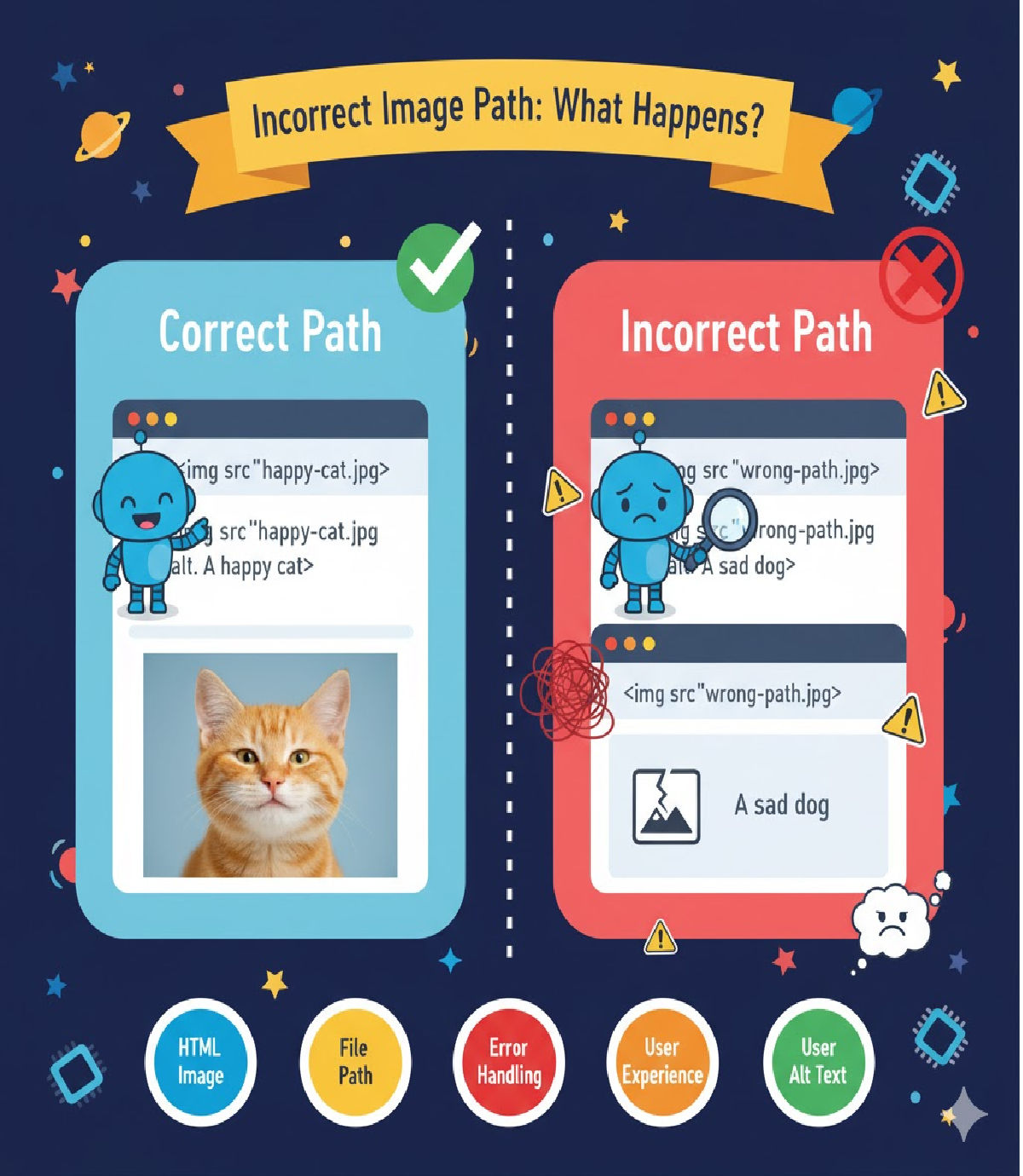
Explaining what happens if the image path in the <img> tag is incorrect, along with examples and code.
📝 What Happens If the Image Path in the <img> Tag Is Incorrect?
In HTML, the <img> tag is used to display images on a webpage. To render the image properly, the src attribute of the <img> tag must point to a valid and reachable file path or URL.
If the file path is incorrect, misspelled, the file is missing, or the server cannot locate the resource, the browser fails to load the image.
🔍 How Browsers React When Image Path Is Incorrect
When the browser tries to fetch an image from the given src path and the location is invalid, the following happens:
❌ Image does not appear on the UI
Instead of the intended image:
- A broken image icon is displayed (in Chrome, Edge, Firefox, etc.)
- Or the space remains blank depending on CSS styling
❌ Console Error
The browser's developer console logs a message similar to:
GET http://example.com/images/photo.png 404 (Not Found)
or
Failed to load resource: net::ERR_FILE_NOT_FOUND
⚠ User Experience Impact
- Missing visuals on the webpage
- Possible layout collapse if the space is not reserved with CSS
- Reduction in UI quality and professionalism
🧪 Example — Incorrect Path (image fails to load)
<img src="images/profilephoto.png" alt="User Profile Picture">
If the actual path is images/profile-photo.png (with a hyphen), the file won’t load.
Browser result: 🚫 Broken image icon + console 404 error
🧾 Correct Path Example
<img src="images/profile-photo.png" alt="User Profile Picture">
Browser result: ✔ Image loads successfully
🛡 How to Handle Incorrect Image Paths Gracefully
1️⃣ Use alt Attribute
The alt attribute displays readable text when the image cannot load.
<img src="images/profilephoto.png" alt="Profile image not found">
Even if the path is incorrect, the user sees:
➡ Profile image not found
This is also important for:
- SEO
- Accessibility (screen readers)
- Better UX
2️⃣ Using onerror to Load a Fallback Image Automatically
<img src="images/profilephoto.png"
     onerror="this.src='images/default-user.png';"
     alt="User Image">
If profilephoto.png fails to load, the browser automatically swaps in default-user.png.
3️⃣ Reserve Space with CSS to Avoid UI Distortion
Sometimes the missing image collapses the layout. To avoid this:
<style>
img {
  width: 150px;
  height: 150px;
  object-fit: cover;
}
</style>
This ensures the design remains intact even if the image fails.
💡 Best Practices to Avoid Broken Image Issues
| Recommendation | Benefit |
|---|---|
| Always verify image path before publishing | Eliminates load failures |
| Use lowercase consistently in file names | Prevents case-sensitive path errors |
| Prefer hyphens over spaces in file names | Ensures URL safety |
| Use meaningful filenames | SEO improvement |
Provide alt and fallback image | Protect UX |
📌 Summary
When the image path in an <img> tag is incorrect:
| Browser Behavior | Impact |
|---|---|
| Image fails to load | ❌ |
| Broken image icon displayed | ❌ |
| Console logs 404 or resource error | ❌ |
alt text appears (if provided) | ✔ |
Fallback image can be loaded using onerror | ✔ |
🚀 Final Takeaway
To prevent bad user experience and broken visuals:
Always verify image paths, provide
alttext, and implement an optionalonerrorfallback. This guarantees a more stable UI even if resources fail to load.
Related Posts