How do you hide an element from the screen but keep it accessible to screen readers?
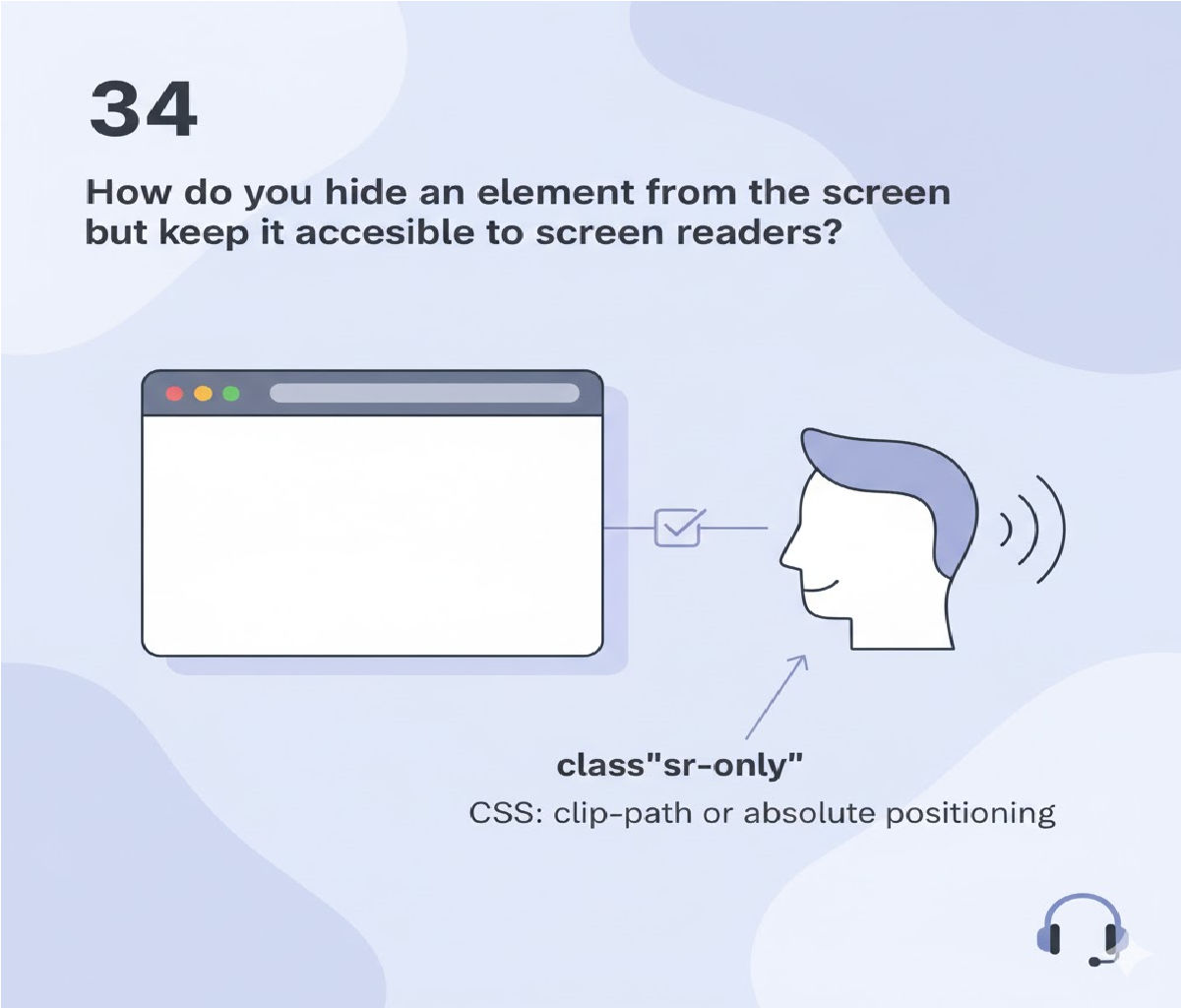
In modern web development, accessibility is not optional—it is essential. Many users rely on screen readers and other assistive technologies to navigate websites. Sometimes, developers need to hide content visually while still making it available to screen readers.
The answer lies in proper CSS techniques—not by using display: none or visibility: hidden, but by using screen-reader-only styles.
In this article, we will explore:
- Why this technique is important
- Incorrect vs correct methods
- The recommended CSS pattern
- Code examples
- Real-world use cases
- Common mistakes
- Best accessibility practices
Why Hide Content but Keep It Accessible?
There are many real-world scenarios where content should not appear visually but should still be read by screen readers:
Common Use Cases
- Extra instructions for screen reader users
- Accessible labels for icons
- Skip navigation links
- Hidden form hints
- Decorative headings needed for structure
- Accessibility descriptions for charts or graphs
For example, a search icon button may not have visible text, but screen readers still need a label like “Search”.
Why NOT Use display: none or visibility: hidden?
Many beginners make the mistake of using:
display: none;
or
visibility: hidden;
Why These Are Wrong for Accessibility
| CSS Property | Visible on Screen | Read by Screen Readers |
|---|---|---|
| display: none | ❌ No | ❌ No |
| visibility: hidden | ❌ No | ❌ No |
Both properties remove the element from the accessibility tree, meaning screen readers cannot detect or read them.
👉 If screen readers can’t read it, the content is inaccessible.
The Correct Way: Screen-Reader-Only CSS
To hide content visually without removing it from assistive technologies, we use a special CSS pattern often called:
.sr-only.visually-hidden.screen-reader-text
The Recommended CSS Technique
.visually-hidden {
  position: absolute;
  width: 1px;
  height: 1px;
  padding: 0;
  margin: -1px;
  overflow: hidden;
  clip: rect(0, 0, 0, 0);
  white-space: nowrap;
  border: 0;
}
This hides the element off-screen while keeping it available to screen readers.
Basic HTML Example
<p class="visually-hidden">
  This text is only for screen reader users.
</p>
What Happens Here?
- Sighted users do not see the text
- Screen readers read it normally
- The content remains in the accessibility tree
How This CSS Works (Step-by-Step)
Let’s understand why each property matters:
position: absolute;
Removes the element from normal document flow.
width: 1px; height: 1px;
Shrinks the element to a minimal size.
margin: -1px;
Ensures no visual space is occupied.
overflow: hidden;
Prevents content from spilling visually.
clip: rect(0, 0, 0, 0);
Clips the element completely.
white-space: nowrap;
Prevents line breaks that might expose text.
border: 0;
Avoids visual borders.
Together, these properties hide the element visually without removing it from the DOM or accessibility tree.
Real-World Example: Icon Button with Accessible Text
HTML
<button class="icon-button">
  <span class="visually-hidden">Search</span>
  🔍
</button>
CSS
.icon-button {
  font-size: 20px;
  background: none;
  border: none;
  cursor: pointer;
}
Result
- Sighted users see only the 🔍 icon
- Screen readers announce: “Search button”
✔ Perfect accessibility
✔ Clean UI
✔ No duplicate visible text
Example: Accessible Form Labels
❌ Incorrect (Hidden Label)
<label style="display:none">Email</label>
<input type="email">
Screen readers cannot read this label.
✅ Correct (Screen Reader Only Label)
<label class="visually-hidden" for="email">
  Email Address
</label>
<input type="email" id="email">
This ensures:
- The label is hidden visually
- Screen readers correctly associate the label
Skip Navigation Links (Very Important Use Case)
Skip links help keyboard and screen reader users jump past repetitive menus.
HTML
<a href="#main-content" class="visually-hidden focusable">
  Skip to main content
</a>
CSS
.focusable:focus {
  position: static;
  width: auto;
  height: auto;
  margin: 0;
  clip: auto;
  overflow: visible;
}
Why This Is Powerful
- Hidden by default
- Becomes visible when focused using keyboard
- Essential for accessibility compliance (WCAG)
Alternative: Using aria-label
Sometimes you can use aria-label instead of hidden text.
<button aria-label="Close menu">
  ❌
</button>
When to Use aria-label
- Simple, short labels
- No visible text exists
- Icon-only buttons
When NOT to Use It
- Long instructions
- Content that needs translation
- Structured text
👉 Hidden text is usually more reliable than aria-label alone.
Common Mistakes to Avoid
❌ Using display: none
Removes content from screen readers.
❌ Using visibility: hidden
Still inaccessible.
❌ Hiding labels without alternatives
Breaks form accessibility.
❌ Overusing aria-label
Can override visible text incorrectly.
❌ Forgetting keyboard focus styles
Hidden content should still be navigable when needed.
SEO Benefits of Screen-Reader-Only Content
While screen readers are the primary audience, this technique also benefits SEO:
- Search engines can index the content
- Improves semantic clarity
- Enhances usability signals
- Supports accessibility ranking factors
⚠️ Do not hide keyword-stuffed content—that’s considered cloaking and is penalized.
Best Practices Summary
✔ Use .visually-hidden instead of display: none
✔ Always associate hidden labels with form controls
✔ Prefer hidden text over excessive aria-label usage
✔ Test with screen readers (NVDA, JAWS, VoiceOver)
✔ Ensure keyboard accessibility
✔ Follow WCAG 2.1 guidelines
Complete Working Example
<!DOCTYPE html>
<html lang="en">
<head>
<meta charset="UTF-8">
<title>Accessible Hidden Content</title>
<style>
.visually-hidden {
  position: absolute;
  width: 1px;
  height: 1px;
  padding: 0;
  margin: -1px;
  overflow: hidden;
  clip: rect(0, 0, 0, 0);
  white-space: nowrap;
  border: 0;
}
</style>
</head>
<body>

<button>
  <span class="visually-hidden">Open Menu</span>
  ☰
</button>

</body>
</html>
Final Answer (Quick Summary)
To hide an element from the screen but keep it accessible to screen readers, do not use
display: noneorvisibility: hidden.
Instead, apply screen-reader-only CSS that visually hides the element while keeping it in the accessibility tree.
This technique ensures inclusive design, WCAG compliance, and a better experience for all users.
Related Posts