How do you group multiple checkboxes under the same name to collect multiple values?
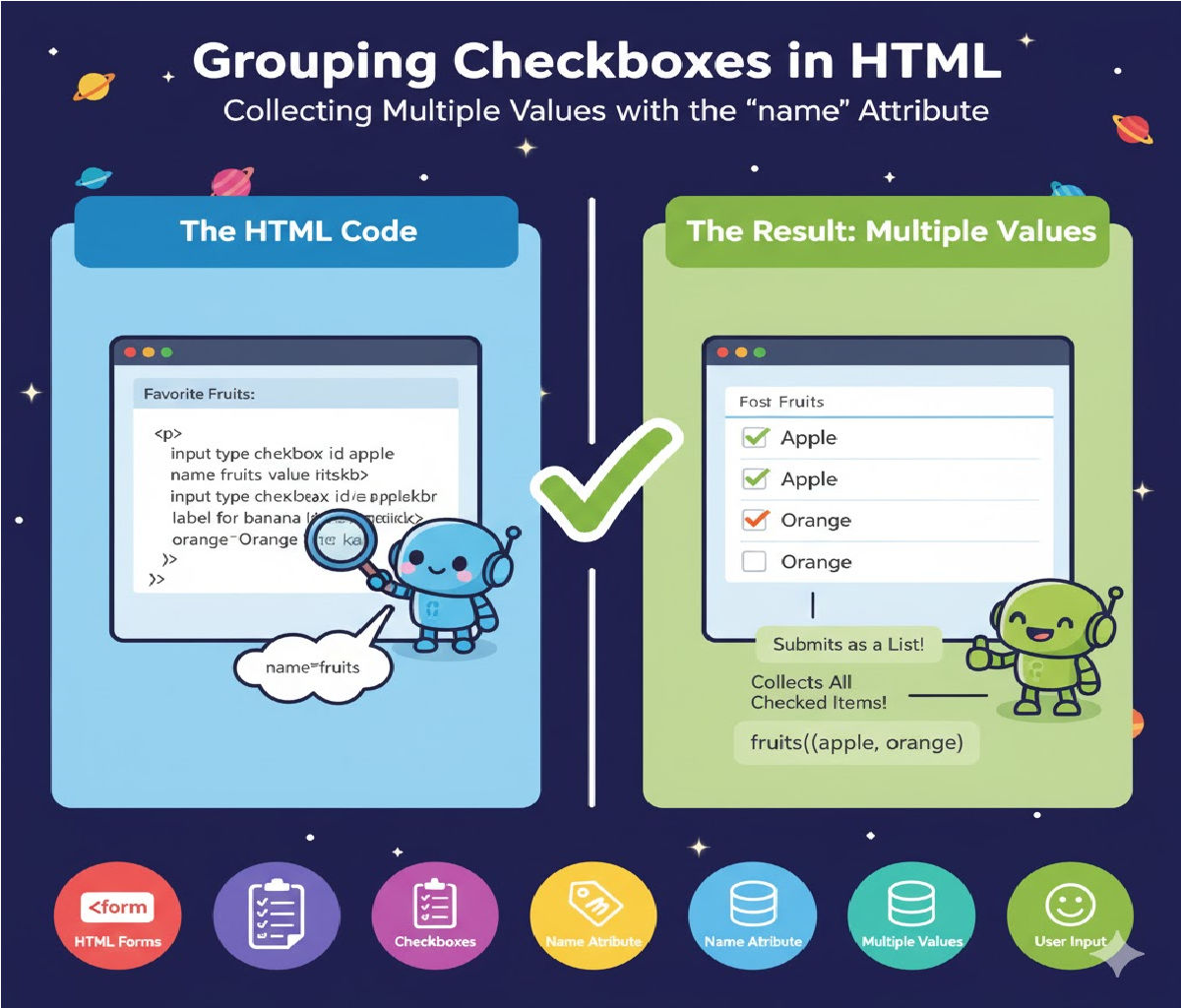
How to group multiple checkboxes under the same name to collect multiple values, complete with examples, explanations, best practices, pitfalls, and code.
Forms are one of the most important elements of any web application. Whether you are creating a survey, a product filter system, a registration form, or a settings page, you often need to allow users to select more than one option. Checkboxes are specially designed for this purpose—they allow multiple selections. But to collect these selections properly, especially when sending form data to the server, you must know how to group multiple checkboxes under the same name.
This long-form article explains why grouping matters, how HTML treats checkboxes, the role of the name attribute, how backend scripts receive checkbox values, and the correct way to structure your code. You'll also learn about JavaScript retrieval, form serialization, common mistakes, and accessibility tips.
Let’s begin with the core question.
Why Group Checkboxes Under the Same Name?
In HTML forms, the name attribute determines how data is sent to the server. For radio buttons (single selection), all options under the same name send one value. But checkboxes can allow multiple values, and grouping them under the same name tells the browser:
“If multiple boxes with the same name are checked, send all their values as part of the same group.”
This means your backend (PHP, Node.js, Python, etc.) can treat them as a list or an array.
Without grouping, each checkbox would be treated individually, making processing far more difficult.
Basic Syntax: Grouping Checkboxes with the Same Name
Here’s the simplest example:
<form action="submit.php" method="POST">
  <label><input type="checkbox" name="fruits[]" value="apple"> Apple</label>
  <label><input type="checkbox" name="fruits[]" value="banana"> Banana</label>
  <label><input type="checkbox" name="fruits[]" value="mango"> Mango</label>

  <button type="submit">Submit</button>
</form>
Why use fruits[] instead of fruits?
The [] (square brackets) tell your backend:
✔ Multiple values
✔ Treat them as an array
✔ Handle them as grouped input
This is widely used in PHP, Node.js, Python Flask, and other backend frameworks.
How the Browser Sends the Data
If a user checks Apple and Mango, the browser sends:
fruits[]=apple
fruits[]=mango
The server receives it like:
$_POST['fruits'] = ['apple', 'mango'];
or in Node.js (Express):
req.body.fruits // ["apple", "mango"]
or in Flask/Python:
request.form.getlist('fruits[]')
Example with Fieldset and Legend (More Semantic HTML)
For accessibility and structure, you can wrap grouped checkboxes in a fieldset:
<form>
  <fieldset>
    <legend>Select Your Hobbies</legend>

    <label><input type="checkbox" name="hobbies[]" value="reading"> Reading</label>
    <label><input type="checkbox" name="hobbies[]" value="traveling"> Traveling</label>
    <label><input type="checkbox" name="hobbies[]" value="cooking"> Cooking</label>
  </fieldset>

  <button type="submit">Submit</button>
</form>
Using fieldset helps assistive technologies like screen readers, making your form more accessible.
How JavaScript Reads Multiple Checkbox Values
Sometimes you need to handle the values before sending them to the server (for validation, dynamic filtering, showing results instantly, etc.).
Here is the pure JavaScript approach:
<script>
function getCheckedValues() {
    const checkboxes = document.querySelectorAll('input[name="colors[]"]:checked');
    let values = [];

    checkboxes.forEach(checkbox => {
        values.push(checkbox.value);
    });

    console.log(values);
}
</script>

<label><input type="checkbox" name="colors[]" value="red"> Red</label>
<label><input type="checkbox" name="colors[]" value="green"> Green</label>
<label><input type="checkbox" name="colors[]" value="blue"> Blue</label>

<button onclick="getCheckedValues()">Show Selected Colors</button>
Output example:
["red", "green"]
This is extremely useful when building filters (e-commerce sites, dashboards, analytics panels, etc.).
Using JavaScript FormData to Collect Checkbox Arrays
Modern web apps often use FormData to process forms via AJAX:
const form = document.querySelector("form");
const data = new FormData(form);

console.log(data.getAll("skills[]"));
If your checkboxes look like:
<input type="checkbox" name="skills[]" value="html">
<input type="checkbox" name="skills[]" value="css">
<input type="checkbox" name="skills[]" value="javascript">
getAll() returns:
["html", "css"]
Checkbox Grouping Without Brackets ([]): Can You Do It?
Technically, yes… but not recommended.
Example:
<input type="checkbox" name="fruit" value="apple">
<input type="checkbox" name="fruit" value="banana">
Depending on the backend language:
- Some servers take only the last checked value
- Some take only the first
- Some take none
- Some merge them inconsistently
This inconsistency is why developers use [] to indicate an array.
Adding IDs for Better Accessibility
Without using <label> tied to an id, users must click directly on the tiny checkbox. Improve UX like this:
<input type="checkbox" id="apple" name="fruits[]" value="apple">
<label for="apple">Apple</label>
This improves:
- accessibility
- clickable area
- usability on mobile
Styling Groups of Checkboxes with CSS
Checkboxes can be styled for better layout control.
Example: vertical list:
.checkbox-group {
    display: flex;
    flex-direction: column;
    gap: 8px;
}
HTML:
<div class="checkbox-group">
  <label><input type="checkbox" name="pets[]" value="dog"> Dog</label>
  <label><input type="checkbox" name="pets[]" value="cat"> Cat</label>
  <label><input type="checkbox" name="pets[]" value="bird"> Bird</label>
</div>
How Back-End Languages Handle Grouped Checkboxes
PHP Example
$selected = $_POST['items']; // array
foreach($selected as $item){
    echo $item . "<br>";
}
Node.js / Express
app.post("/submit", (req, res) => {
    console.log(req.body.languages); // array
});
Python Flask
selected = request.form.getlist("topics[]")
print(selected)
ASP.NET
var values = Request.Form.GetValues("services[]");
Common Mistakes When Grouping Checkboxes
❌ Mistake 1: Forgetting the Square Brackets
name="options"
Result: only one value is captured.
✔ Correct:
name="options[]"
❌ Mistake 2: Using Different Names
This breaks grouping:
name="option1"
name="option2"
name="option3"
❌ Mistake 3: Not Using Values
This sends "on" instead of the intended data:
<input type="checkbox" name="colors[]">
✔ Correct:
<input type="checkbox" name="colors[]" value="red">
Creating an Advanced Grouped Checkbox Form
Here is a more realistic example with multiple categories:
<form>
  <fieldset>
    <legend>Select Your Interests</legend>

    <h4>Sports</h4>
    <label><input type="checkbox" name="interests[]" value="football"> Football</label>
    <label><input type="checkbox" name="interests[]" value="cricket"> Cricket</label>
    <label><input type="checkbox" name="interests[]" value="tennis"> Tennis</label>

    <h4>Music</h4>
    <label><input type="checkbox" name="interests[]" value="rock"> Rock</label>
    <label><input type="checkbox" name="interests[]" value="jazz"> Jazz</label>
    <label><input type="checkbox" name="interests[]" value="classical"> Classical</label>

    <h4>Technology</h4>
    <label><input type="checkbox" name="interests[]" value="ai"> AI</label>
    <label><input type="checkbox" name="interests[]" value="robotics"> Robotics</label>
    <label><input type="checkbox" name="interests[]" value="programming"> Programming</label>
  </fieldset>

  <button type="submit">Submit</button>
</form>
All checkboxes share:
name="interests[]"
Thus, the backend receives a full list of all checked items.
JavaScript: Getting Grouped Checkbox Values Real-Time
This is useful for live search filters.
document.querySelectorAll('input[name="category[]"]').forEach(cb => {
    cb.addEventListener("change", () => {
        const selected = [...document.querySelectorAll('input[name="category[]"]:checked')].map(x => x.value);
        console.log(selected);
    });
});
Adding Required Rule (At Least One Must Be Checked)
HTML does not support “at least one checkbox must be selected,” but JavaScript can enforce it:
function validateCheckboxGroup() {
    const checked = document.querySelectorAll('input[name="courses[]"]:checked');
    if (checked.length === 0) {
        alert("Please select at least one course.");
        return false;
    }
    return true;
}
Usage:
<form onsubmit="return validateCheckboxGroup()">
Why Grouping Checkboxes Enhances UX and Backend Logic
✔ Makes data easier to process
✔ Follows HTML form standards
✔ Helps backend frameworks handle arrays automatically
✔ Improves readability of form code
✔ Supports scalable interfaces (such as filters)
✔ Works better with JavaScript and AJAX
Conclusion
Grouping multiple checkboxes under the same name is essential when you want users to select more than one option. The name="example[]" pattern ensures that all checked values are collected and passed to the server as an array. This method is reliable, clean, and compatible with all major backend languages.
Related Posts