How do you control video playback (like play, pause) using only HTML attributes?
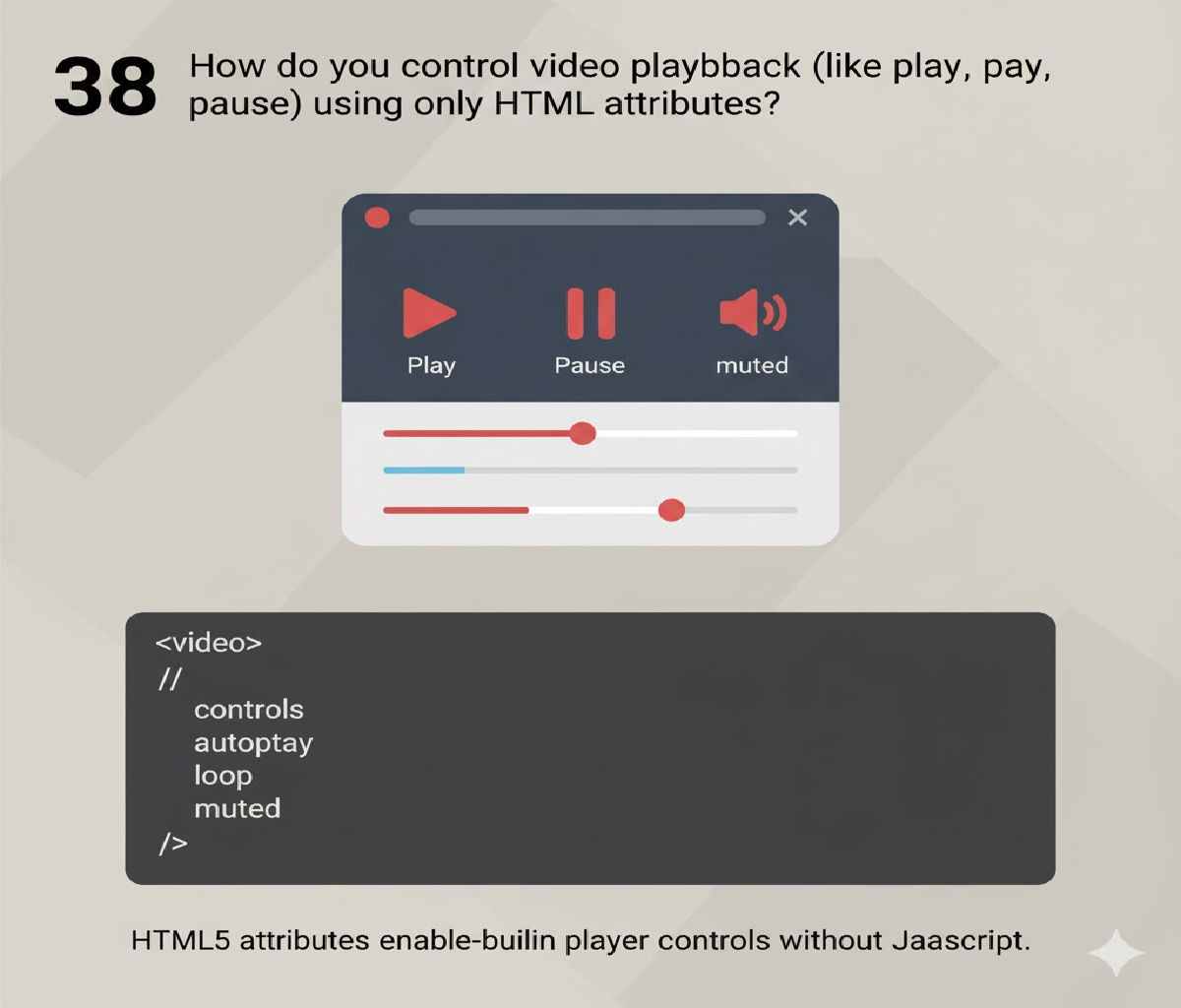
Controlling video playback using only HTML attributes is a foundational concept in web development. While JavaScript provides dynamic control over video playback, HTML itself provides a set of attributes that allow users to define the behavior and control options of a video element directly. This approach is useful for static web pages, accessibility considerations, and quick implementations where scripting is unnecessary.
Let’s explore this topic in detail and provide a comprehensive explanation with code examples, user experience considerations, and SEO-friendly content.
Introduction to the <video> Element
The <video> element is a core part of HTML5, designed to embed videos directly into a webpage without requiring third-party plugins like Flash. It provides a simple interface for adding media content and controlling playback through attributes.
The basic structure of the <video> element is:
<video src="sample-video.mp4" controls></video>
src: Specifies the path to the video file. You can also use the<source>element for multiple formats.controls: Adds built-in playback controls such as play, pause, volume, and fullscreen buttons.
HTML Attributes for Controlling Video Playback
There are several HTML attributes that influence video playback behavior without using JavaScript:
controlsautoplayloopmutedposterpreloadwidthandheightplaysinline
We will go through each attribute in detail.
1. controls
The controls attribute adds a default set of video controls. These include:
- Play/Pause
- Volume
- Seek (progress bar)
- Fullscreen toggle (if supported by browser)
Example:
<video src="sample-video.mp4" controls>
  Your browser does not support the video tag.
</video>
When this attribute is added, users can manually play or pause the video. Without controls, the video is embedded silently unless you use autoplay.
2. autoplay
The autoplay attribute makes the video start playing automatically as soon as it is ready. Note that most modern browsers require the video to be muted for autoplay to work.
Example:
<video src="sample-video.mp4" autoplay muted controls>
  Your browser does not support the video tag.
</video>
Key Points:
- Autoplay is often blocked on mobile devices unless
mutedis also set. - Combine
autoplaywithmutedto ensure the video plays automatically without user interaction.
3. loop
The loop attribute makes the video restart automatically after it finishes playing.
Example:
<video src="sample-video.mp4" controls loop>
  Your browser does not support the video tag.
</video>
This is useful for background videos, animations, or repeated media without requiring scripting.
4. muted
The muted attribute silences the video playback. This is essential for autoplaying videos because many browsers block autoplay with sound.
Example:
<video src="sample-video.mp4" controls autoplay muted>
  Your browser does not support the video tag.
</video>
mutedis often combined withautoplay.- Helps in improving user experience and avoiding sudden sound.
5. poster
The poster attribute specifies an image to be shown before the video starts playing. It improves user experience by displaying a placeholder frame.
Example:
<video src="sample-video.mp4" controls poster="poster-image.jpg">
  Your browser does not support the video tag.
</video>
- The image is displayed until the user clicks play.
- Ideal for providing a preview of the video content.
6. preload
The preload attribute hints to the browser how much of the video should be loaded initially. It can take three values:
auto: Loads the entire video when the page loads.metadata: Loads only metadata (duration, dimensions).none: Does not load the video until the user clicks play.
Example:
<video src="sample-video.mp4" controls preload="metadata">
  Your browser does not support the video tag.
</video>
Using preload wisely improves page performance, especially for large video files.
7. width and height
These attributes control the display size of the video player. While not directly related to playback, they are important for layout and responsiveness.
Example:
<video src="sample-video.mp4" controls width="640" height="360">
  Your browser does not support the video tag.
</video>
- Specify dimensions in pixels.
- Use CSS for responsive scaling if necessary.
8. playsinline
The playsinline attribute ensures that videos play inline on mobile devices rather than opening fullscreen automatically (especially on iOS).
Example:
<video src="sample-video.mp4" controls playsinline>
  Your browser does not support the video tag.
</video>
- Useful for embedding videos in articles, blogs, or background content.
- Enhances user experience on smartphones and tablets.
Combining Attributes for Enhanced Video Playback
You can combine multiple attributes to achieve specific behavior without JavaScript.
Example: Autoplay, Muted, Loop, and Inline:
<video src="sample-video.mp4" autoplay muted loop playsinline controls width="800" height="450" poster="poster-image.jpg">
  Your browser does not support the video tag.
</video>
Behavior:
- Starts automatically
- No sound
- Loops continuously
- Plays inline on mobile devices
- Shows default controls
- Displays a poster image before playing
Using <source> for Multiple Formats
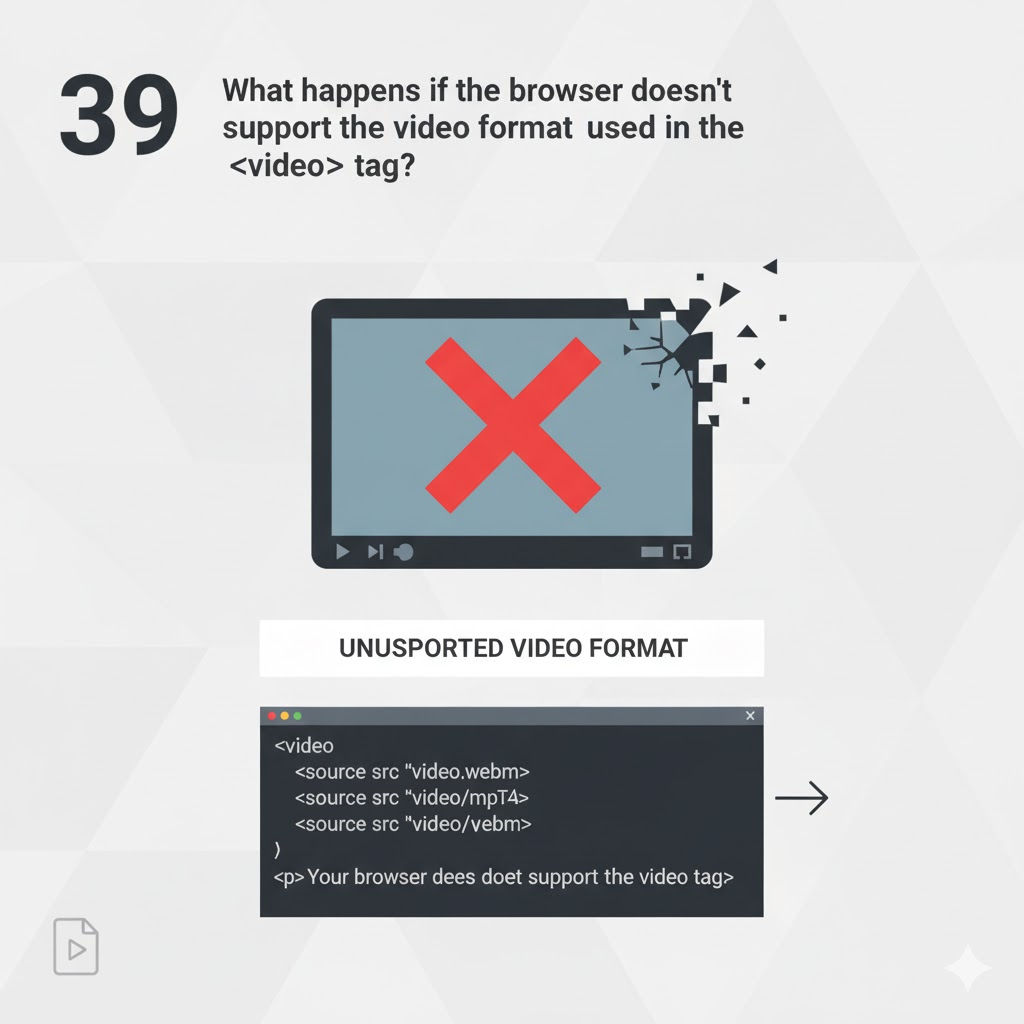
To ensure maximum browser compatibility, it’s recommended to provide multiple video formats using <source>:
<video controls autoplay muted loop width="640" height="360" poster="poster.jpg">
  <source src="video.mp4" type="video/mp4">
  <source src="video.webm" type="video/webm">
  <source src="video.ogv" type="video/ogg">
  Your browser does not support the video tag.
</video>
- The browser selects the first supported format.
- Improves compatibility across browsers like Chrome, Firefox, Safari, and Edge.
Accessibility Considerations
When using HTML attributes for video playback:
- Always provide a fallback text:
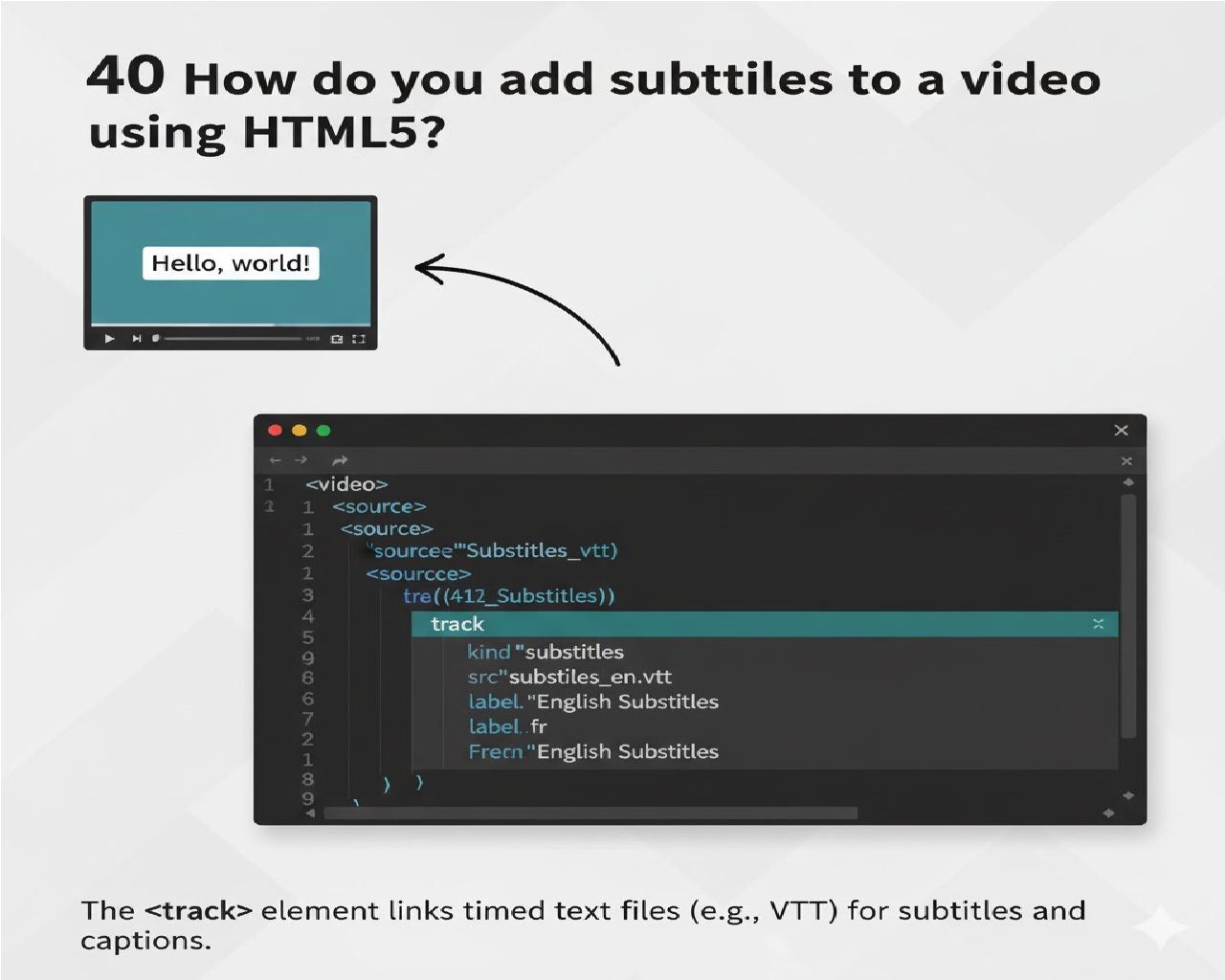
Your browser does not support the video tag. - Include captions using the
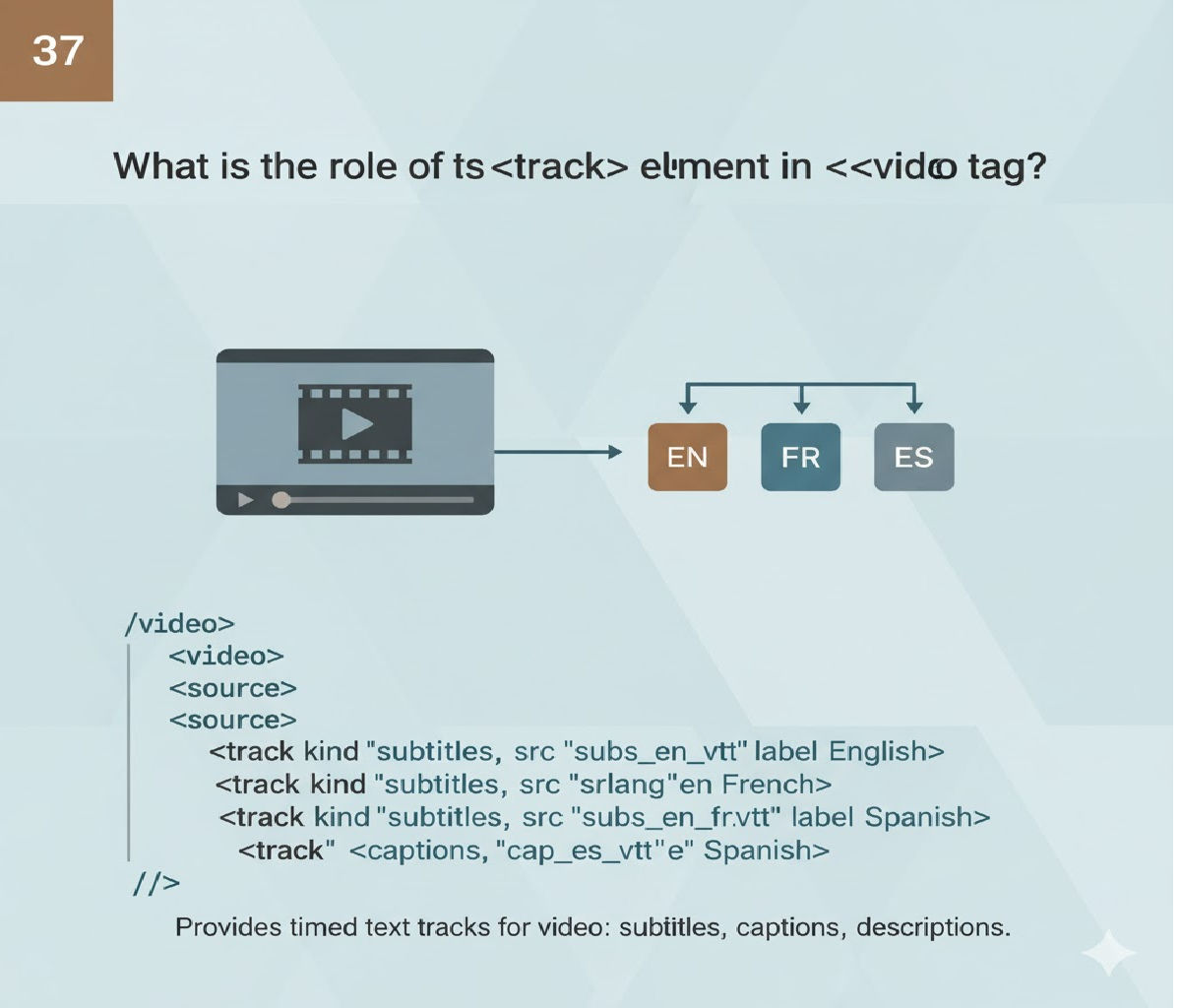
<track>element:
<video controls width="640" height="360" poster="poster.jpg">
  <source src="video.mp4" type="video/mp4">
  <track src="captions.vtt" kind="captions" srclang="en" label="English">
</video>
- Makes videos accessible to people with hearing impairments.
- Enhances SEO by improving content clarity.
Advantages of Using HTML Attributes Over JavaScript
- Simplicity: No scripting is needed; a few attributes control playback behavior.
- Browser Compatibility: Supported in all modern browsers.
- Performance: Faster page load, fewer scripts, and minimal processing.
- Accessibility: Works seamlessly with screen readers and assistive devices.
- SEO-Friendly: Attributes like
posterimprove page engagement metrics.
Limitations
While HTML attributes are powerful, they have limitations:
- No dynamic control (e.g., play after a specific event).
- Cannot trigger custom events like
onTimeUpdateoronEnded. - Limited interaction beyond autoplay, loop, and mute.
For dynamic behaviors like skipping to a timestamp or controlling playback speed, JavaScript is required.
Summary
HTML attributes provide a straightforward way to control video playback without relying on JavaScript. Key attributes include:
| Attribute | Purpose |
|---|---|
controls | Adds default video controls |
autoplay | Automatically starts playback |
loop | Repeats video after ending |
muted | Silences audio (required for autoplay) |
poster | Displays an image before playback |
preload | Hints how much video to load |
width / height | Sets player size |
playsinline | Ensures inline playback on mobile |
Combining these attributes can produce rich, accessible, and user-friendly video experiences without any scripting.
Example: Full Featured Video Using Only HTML Attributes
<!DOCTYPE html>
<html lang="en">
<head>
<meta charset="UTF-8">
<meta name="viewport" content="width=device-width, initial-scale=1.0">
<title>HTML Video Playback Example</title>
</head>
<body>

<h1>Sample Video Playback Using HTML Attributes</h1>

<video controls autoplay muted loop playsinline width="800" height="450" poster="poster-image.jpg">
  <source src="video.mp4" type="video/mp4">
  <source src="video.webm" type="video/webm">
  <source src="video.ogv" type="video/ogg">
  Your browser does not support the video tag.
</video>

<p>This video demonstrates controlling playback using only HTML attributes such as <code>autoplay</code>, <code>muted</code>, <code>loop</code>, and <code>controls</code>. No JavaScript is required.</p>

</body>
</html>
Benefits Highlighted in This Example:
- Autoplay video muted for seamless experience.
- Looping playback for repeated demonstration.
- Poster image before playback.
- Inline playback on mobile devices.
- Accessible with fallback text.
By mastering HTML attributes for video playback, web developers can create effective, fast, and accessible video experiences with minimal code. This approach ensures videos are functional, responsive, and user-friendly across devices.
Related Posts