How do you add alternative text for accessibility in images?
Explaining how to add alternative text (alt text) for accessibility in images, along with HTML code examples and best practices.
📝 How Do You Add Alternative Text for Accessibility in Images?
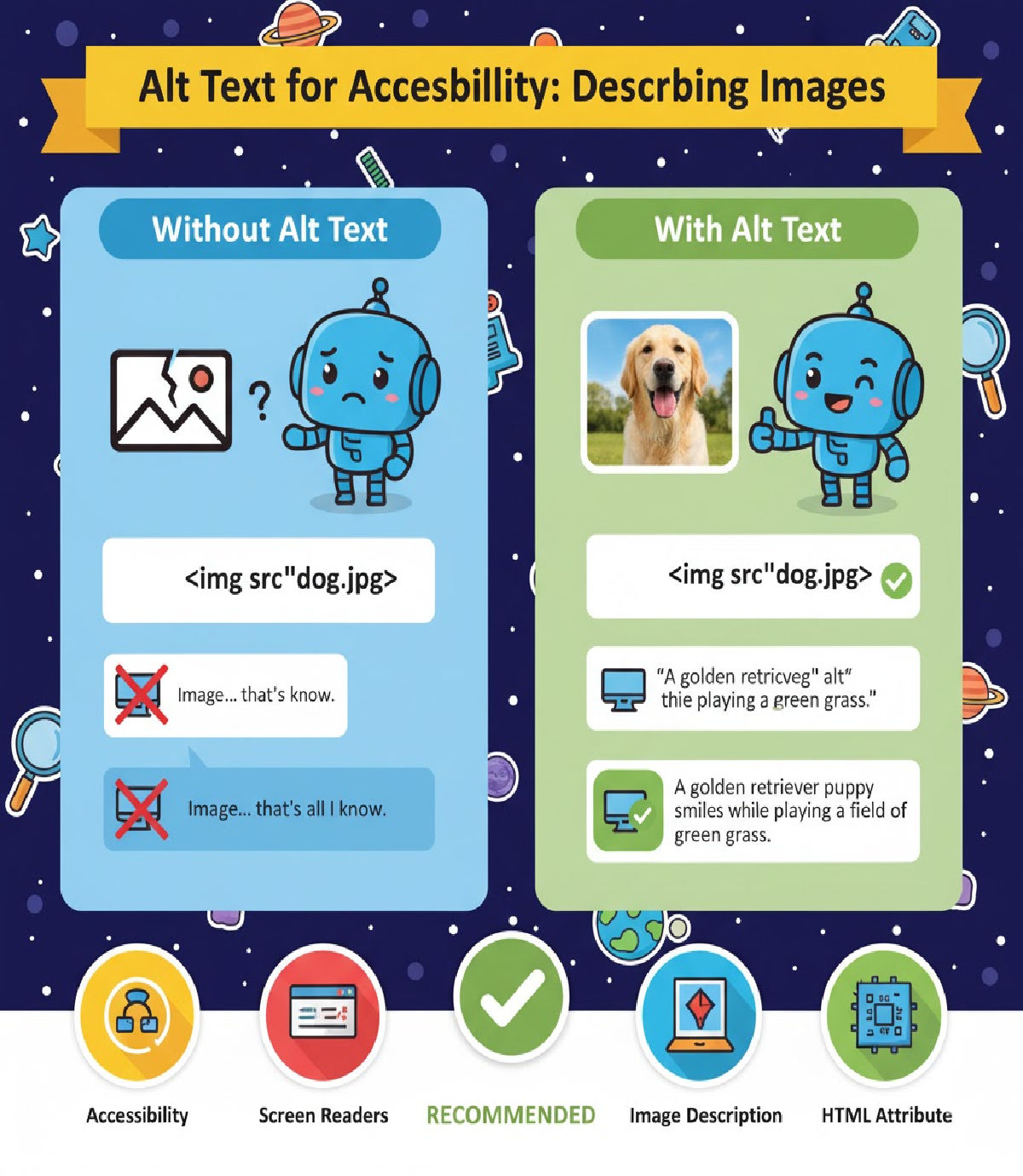
Images are a key part of web design and user experience. However, users with visual impairments or those using assistive technology (such as screen readers) cannot see these images. To ensure equal access to content, HTML provides the alt attribute for the <img> tag. The purpose of alt text is to describe the content and function of an image so users who cannot view it still understand the information.
🔍 What Is Alternative Text (Alt Text)?
Alternative text (alt text) is the text added inside the alt attribute of an <img> tag. It provides a textual description of an image for:
- Screen readers (accessibility)
- Users with slow internet connections
- Cases where the image fails to load
- Search engines (SEO)
Example:
<img src="dog.jpg" alt="A brown dog playing with a tennis ball in the park">
🎯 Why is Alt Text Important?
| Benefit | Purpose |
|---|---|
| Accessibility | Enables blind or visually impaired users to understand images |
| UX fallback | Displays text when an image can’t load |
| SEO | Helps search engines understand image context |
| Faster comprehension | Supplies meaning even without visual cues |
Providing alt text is not only a best practice — it is also required by WCAG accessibility guidelines and many legal standards (such as ADA and Section 508 in the U.S.).
💡 How to Write Good Alt Text
When writing alt text, keep these rules in mind:
| Tip | Example |
|---|---|
| Be descriptive | “Red sports car parked beside a beach” |
| Be concise | 5–15 words is ideal |
| Convey meaning, not just appearance | Describe purpose if functional |
| Avoid “Image of…” or “Picture of…” | Screen readers already announce it’s an image |
| Skip alt text for decorative images | Use alt="" |
🧾 Code Examples
1️⃣ Informative Image
<img src="happy-family.jpg" alt="Parents and two children smiling on a picnic blanket">
Screen reader will read the description.
2️⃣ Functional Image (Buttons / Icons)
When an image acts as a button, describe the action, not the image.
<img src="download-icon.png" alt="Download report">
3️⃣ Decorative Image (No meaningful information)
Use an empty alt attribute so screen readers skip it.
<img src="background-shape.png" alt="">
❗ Without the empty attribute, unnecessary noise would be announced like:
"Background-shape.png graphic"
4️⃣ Image Fails to Load — Alt Text Displays
If the image path is wrong, the browser shows the alt text.
<img src="wrong-path.jpg" alt="A smiling baby under a sunflower hat">
User sees fallback text ➜ A smiling baby under a sunflower hat
5️⃣ Accessibility + SEO Friendly Example
<img src="fresh-orange-juice.jpg"
     alt="Glass of fresh orange juice served with slices of oranges on a wooden table">
Good for:
✔ Screen readers
✔ Image search indexing
🦾 Best Practices for Alt Text
| Do | Don’t |
|---|---|
| Describe the image clearly | Write long paragraphs |
| Focus on meaning or purpose | Use “image of / photo of” |
Use empty alt for decorative visuals | Leave out alt entirely |
| Ensure relevance to surrounding text | Add irrelevant keywords |
🚀 Summary
Adding alt text is the main method of making images accessible.
| Attribute | Role |
|---|---|
<img src=""> | Loads the image |
alt="" | Gives alternative description for accessibility |
The
altattribute helps users with visual impairments understand the content and improves usability when images fail to load — making it essential for accessibility and SEO.
🔥 Final Takeaway
To add alternative text for accessibility, always use the alt attribute in <img>:
<img src="image.jpg" alt="Describe the image accurately and concisely">
This simple step makes the web more inclusive, improves user experience, and follows accessibility guidelines.
Tags:
Related Posts