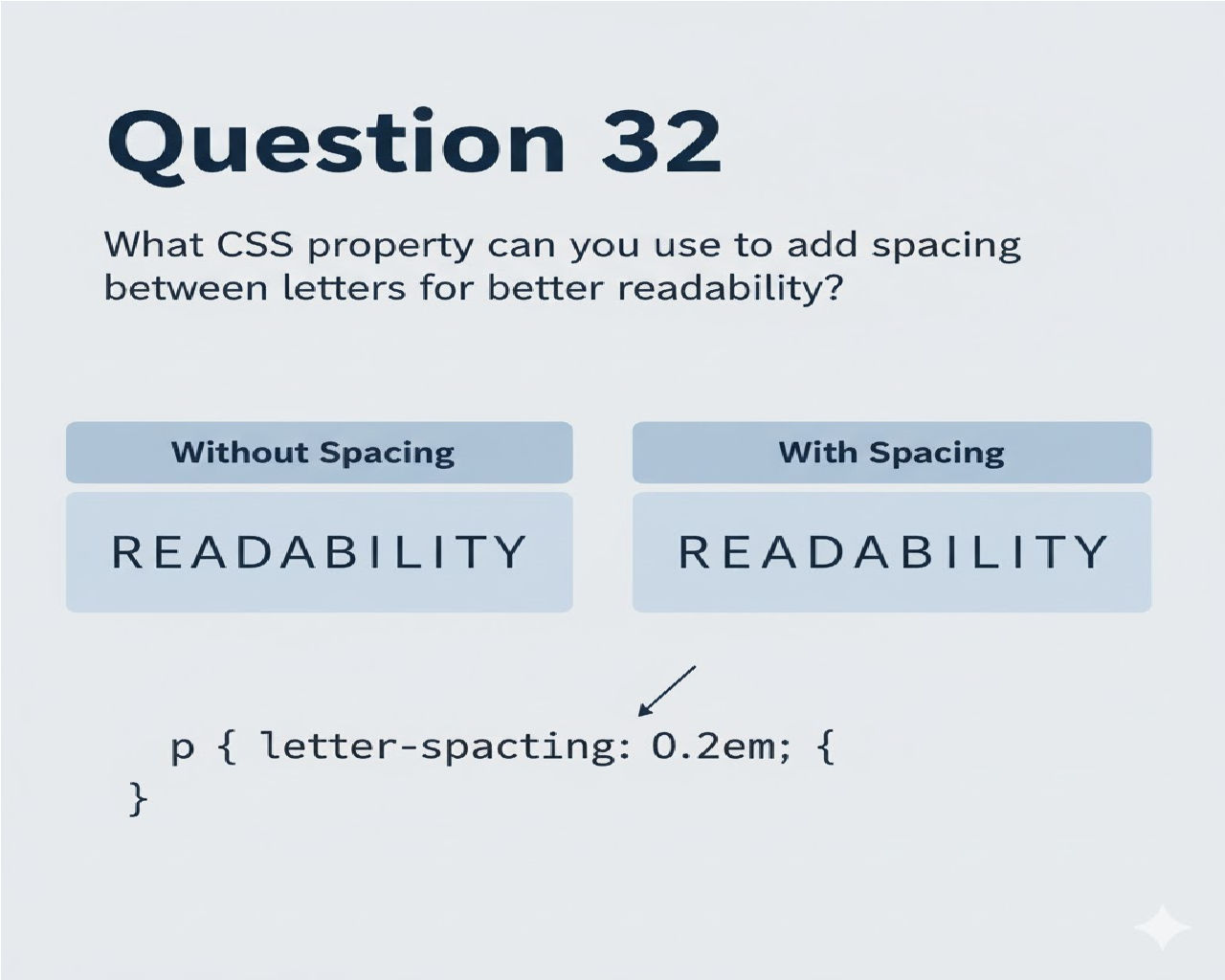
What CSS property can you use to add spacing between letters for better readability?
How to use the CSS letter-spacing property to add spacing between letters for better readability. Includes practical examples, typography tips, and best practices.
Typography plays a major role in web design. Even if your layout is clean and your colors are perfect, poor text spacing can ruin readability. One of the simplest ways to improve text clarity is by adjusting the spacing between letters.
So what CSS property can you use to add spacing between letters for better readability?
The answer is:
letter-spacing
In this detailed guide, you’ll learn:
- What the CSS
letter-spacingproperty is - How it works
- When to use it
- Best practices for readability
- Real-world design examples
- Common mistakes to avoid
- Responsive typography strategies
Let’s dive in.
Understanding the letter-spacing Property in CSS
The letter-spacing property in CSS controls the horizontal spacing between characters in text.
Basic Syntax
selector {
  letter-spacing: value;
}
The value can be:
normal- Length values like
px,em,rem
Basic Example
HTML
<p class="normal-text">This is normal spacing.</p>
<p class="spaced-text">This is increased spacing.</p>
CSS
.normal-text {
  letter-spacing: normal;
}

.spaced-text {
  letter-spacing: 2px;
}
What Happens?
The second paragraph increases spacing between letters by 2 pixels.
This improves readability, especially for headings and uppercase text.
Why Letter Spacing Improves Readability
Adding spacing between letters:
- Reduces visual crowding
- Improves legibility in uppercase text
- Makes headings look more premium
- Enhances UI clarity
- Improves accessibility
This is especially useful in:
- Navigation menus
- Buttons
- Headings
- Branding elements
- Small font sizes
Using Relative Units for Better Scaling
Instead of fixed pixels, professionals often use em.
.heading {
  letter-spacing: 0.1em;
}
Why em?
Because it scales with font size.
If font size changes, spacing adjusts proportionally.
Example: Styling Headings
HTML
<h1 class="hero-title">WELCOME TO OUR WEBSITE</h1>
CSS
.hero-title {
  font-size: 48px;
  text-transform: uppercase;
  letter-spacing: 0.15em;
}
This gives a premium, modern look.
Uppercase text especially benefits from added letter spacing.
Negative Letter Spacing
You can also reduce spacing:
.tight-text {
  letter-spacing: -1px;
}
⚠️ Use carefully. Too much negative spacing reduces readability.
Real-World UI Example: Button Design
HTML
<button class="cta-button">GET STARTED</button>
CSS
.cta-button {
  padding: 12px 30px;
  font-size: 16px;
  font-weight: bold;
  text-transform: uppercase;
  letter-spacing: 0.1em;
  border: none;
  background: #5f27cd;
  color: white;
  cursor: pointer;
}
This creates a clean, modern call-to-action button.
Best Practices for Using letter-spacing
1. Use More Spacing for Uppercase Text
Uppercase letters are visually dense.
.uppercase-text {
  text-transform: uppercase;
  letter-spacing: 0.12em;
}
2. Avoid Overuse
Too much spacing can hurt readability.
Bad example:
p {
  letter-spacing: 5px;
}
That makes paragraphs hard to read.
3. Use Smaller Values for Body Text
body {
  letter-spacing: 0.02em;
}
Subtle adjustments improve readability without distortion.
4. Combine With Line Height
For maximum readability:
p {
  line-height: 1.6;
  letter-spacing: 0.02em;
}
Line height + letter spacing together improve readability significantly.
Responsive Typography Example
Letter spacing should adapt to screen sizes.
h1 {
  letter-spacing: 0.1em;
}

@media (max-width: 768px) {
  h1 {
    letter-spacing: 0.05em;
  }
}
Why?
On small screens, too much spacing breaks layout.
Letter Spacing vs Word Spacing
CSS also provides:
word-spacing
Difference:
letter-spacing→ space between lettersword-spacing→ space between words
Example:
.text-example {
  letter-spacing: 2px;
  word-spacing: 5px;
}
Both improve readability but serve different purposes.
Accessibility Considerations
The letter-spacing property improves accessibility by:
- Helping users with dyslexia
- Reducing visual crowding
- Enhancing clarity for small text
However:
WCAG guidelines recommend:
- Avoid extreme spacing
- Maintain readable font sizes
- Combine with good contrast
Advanced Example: Modern Website Hero Section
HTML
<section class="hero">
  <h1 class="hero-title">BUILD BETTER WEBSITES</h1>
  <p class="hero-subtitle">Modern design starts with clean typography.</p>
</section>
CSS
.hero {
  text-align: center;
  padding: 80px 20px;
}

.hero-title {
  font-size: 52px;
  text-transform: uppercase;
  letter-spacing: 0.18em;
}

.hero-subtitle {
  font-size: 18px;
  letter-spacing: 0.05em;
  margin-top: 20px;
}
This creates a modern SaaS-style design.
Common Mistakes to Avoid
❌ Using Too Much Spacing
p {
  letter-spacing: 10px;
}
This destroys readability.
❌ Forgetting Responsive Adjustments
Large spacing may look fine on desktop but terrible on mobile.
❌ Applying Same Value Everywhere
Headings and body text require different spacing levels.
Browser Support
The letter-spacing property:
- Supported in all modern browsers
- Works in Chrome, Edge, Firefox, Safari
- Supported since early CSS versions
No compatibility concerns.
Full Production Example
Here’s a polished layout using letter-spacing.
<!DOCTYPE html>
<html>
<head>
<style>
body {
  font-family: Arial, sans-serif;
  margin: 0;
  padding: 40px;
}

h1 {
  font-size: 48px;
  text-transform: uppercase;
  letter-spacing: 0.15em;
}

p {
  font-size: 18px;
  line-height: 1.6;
  letter-spacing: 0.02em;
}

button {
  margin-top: 20px;
  padding: 12px 30px;
  font-size: 16px;
  text-transform: uppercase;
  letter-spacing: 0.1em;
  background: #222;
  color: white;
  border: none;
  cursor: pointer;
}
</style>
</head>
<body>

<h1>Design Matters</h1>
<p>Good typography improves readability and enhances user experience.</p>
<button>Learn More</button>

</body>
</html>
Final Thoughts
If you're asking:
What CSS property can you use to add spacing between letters for better readability?
The answer is clear:
letter-spacing
Used correctly, the CSS letter spacing property enhances:
- Readability
- Accessibility
- Branding
- Visual hierarchy
- UI polish
Typography is not just decoration — it’s usability.
And letter-spacing is one of the simplest yet most powerful tools in CSS typography.
Related Posts